
B2B Lead Gen Checklist: WordPress REST API Automation

Section 1: Introduction to WordPress REST API Automation
WordPress REST API Basics
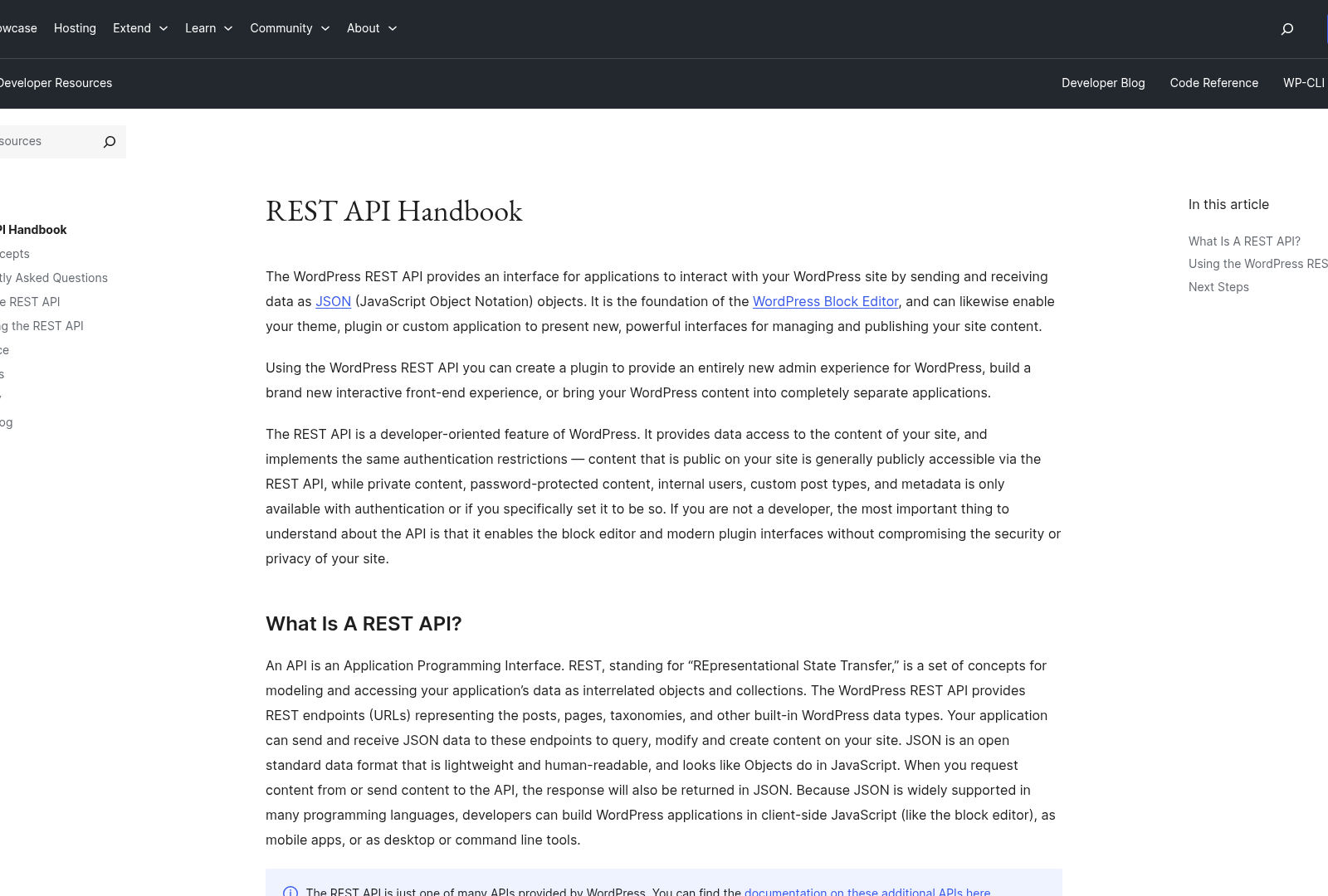
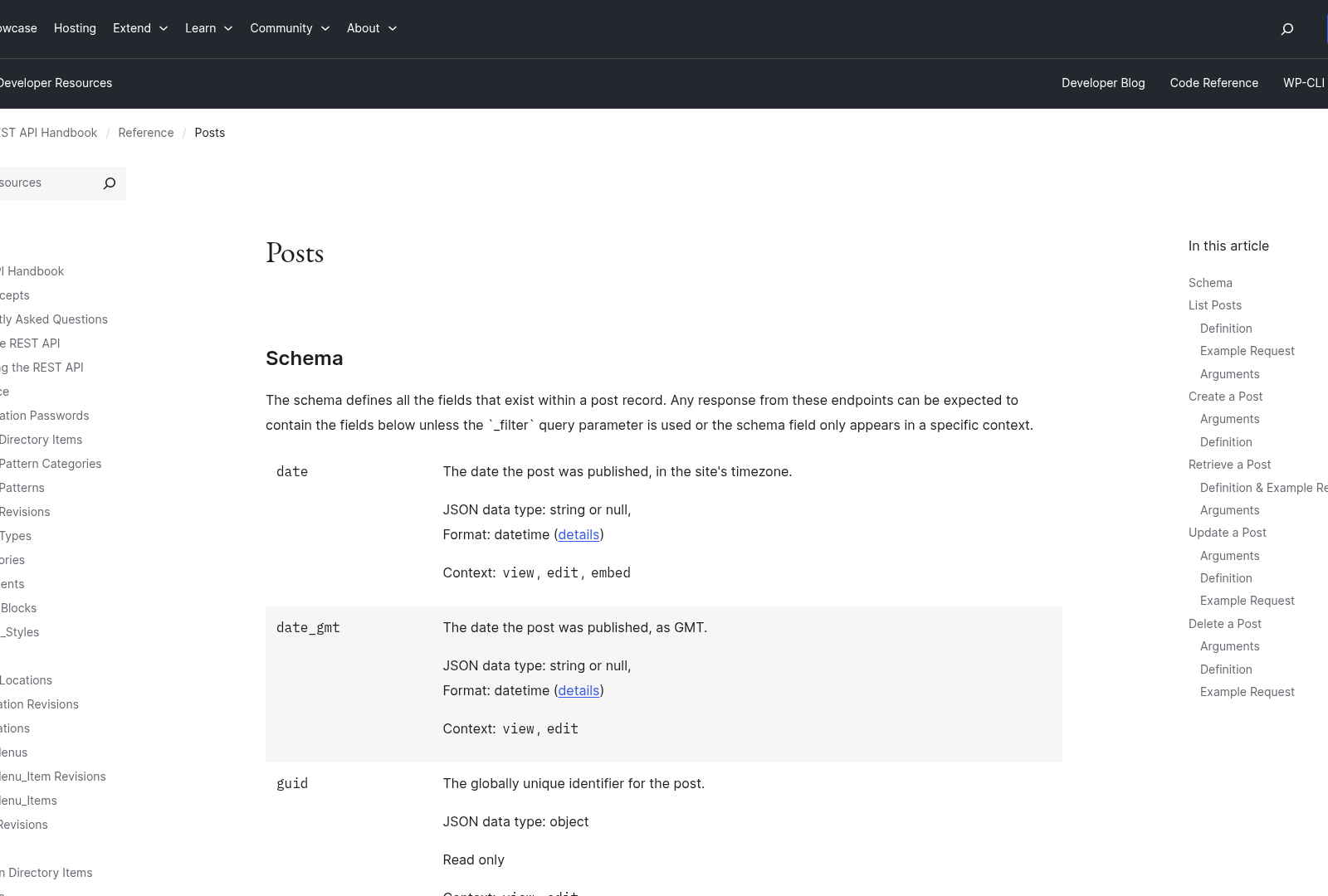
The WordPress REST API serves as a standardized interface for interacting with WordPress data programmatically. It allows developers to create, read, update, and delete content such as posts, pages, users, and custom post types via HTTP requests. This API is built into modern WordPress installations, enabling seamless integration with external tools and services [1]. For B2B lead generation, the REST API acts as a bridge between WordPress sites and automation platforms, facilitating dynamic data exchange without manual intervention [3]. By leveraging endpoints provided by the API, businesses can automate workflows like updating lead information or syncing data across systems [1]. As mentioned in the [Section 2: Setting Up WordPress REST API for Automation] section, plugins like Autonomous Lead Generator demonstrate how REST API integrations streamline these processes.
Automation Potential in B2B Lead Generation
Automation through the WordPress REST API transforms repetitive tasks into scalable processes. For example, the Autonomous Lead Generator plugin uses REST API integrations to identify, score, and nurture prospects automatically, reducing reliance on manual data entry [1]. Similarly, tools like HARPA AI combine REST API functionality with Zapier to automate web research tasks, such as scraping B2B lead data from targeted industries [2]. See the [Section 8: Best Practices and Troubleshooting for WordPress REST API Automation] section for more details on HARPA AI’s REST API node setup and its role in lead research workflows. These integrations enable real-time synchronization between WordPress sites and CRM systems, ensuring lead data is consistently updated across platforms [2]. By automating lead capture and qualification, businesses can focus resources on high-priority prospects while minimizing human error [3].
B2B Lead Generation Benefits
The WordPress REST API enhances B2B lead generation by streamlining data management and improving operational efficiency. Automated lead scoring systems, like those powered by REST API integrations, prioritize prospects based on predefined criteria, allowing sales teams to engage with qualified leads faster [1]. Additionally, REST API-driven automation reduces delays in data processing, ensuring that lead information is immediately accessible for follow-up actions [3]. For instance, plugins like Autonomous Lead Generator eliminate the need for manual lead tracking by nurturing prospects through automated email campaigns triggered via API endpoints [1]. This scalability is critical for B2B operations, where handling large volumes of leads manually would be impractical [2].
Integration with External Tools
The REST API’s compatibility with third-party services expands its utility in B2B lead generation. Developers can use API endpoints to connect WordPress sites with analytics platforms, marketing automation tools, and customer databases [3]. For example, HARPA AI leverages REST API protocols to extract lead data from websites and feed it directly into WordPress-based lead management systems [2]. Building on concepts from [Section 5: Real-Time Analytics and Tracking with WordPress REST API], this interoperability ensures businesses can tailor workflows to specific needs without overhauling existing infrastructure [1]. Furthermore, API-based integrations allow for real-time updates, ensuring that lead data remains accurate across all connected platforms [3].
Challenges and Considerations
While the WordPress REST API offers significant advantages, its implementation requires careful planning. Businesses must ensure API endpoints are secured with authentication mechanisms like OAuth to prevent unauthorized access [1]. Additionally, over-reliance on automated systems may require periodic audits to maintain data quality and alignment with business goals [3]. Developers should also account for rate limits and performance constraints when designing high-volume lead generation workflows [2]. By addressing these challenges proactively, organizations can maximize the ROI of their REST API-driven automation strategies [1].
Section 2: Setting Up WordPress REST API for Automation
Plugin Installation
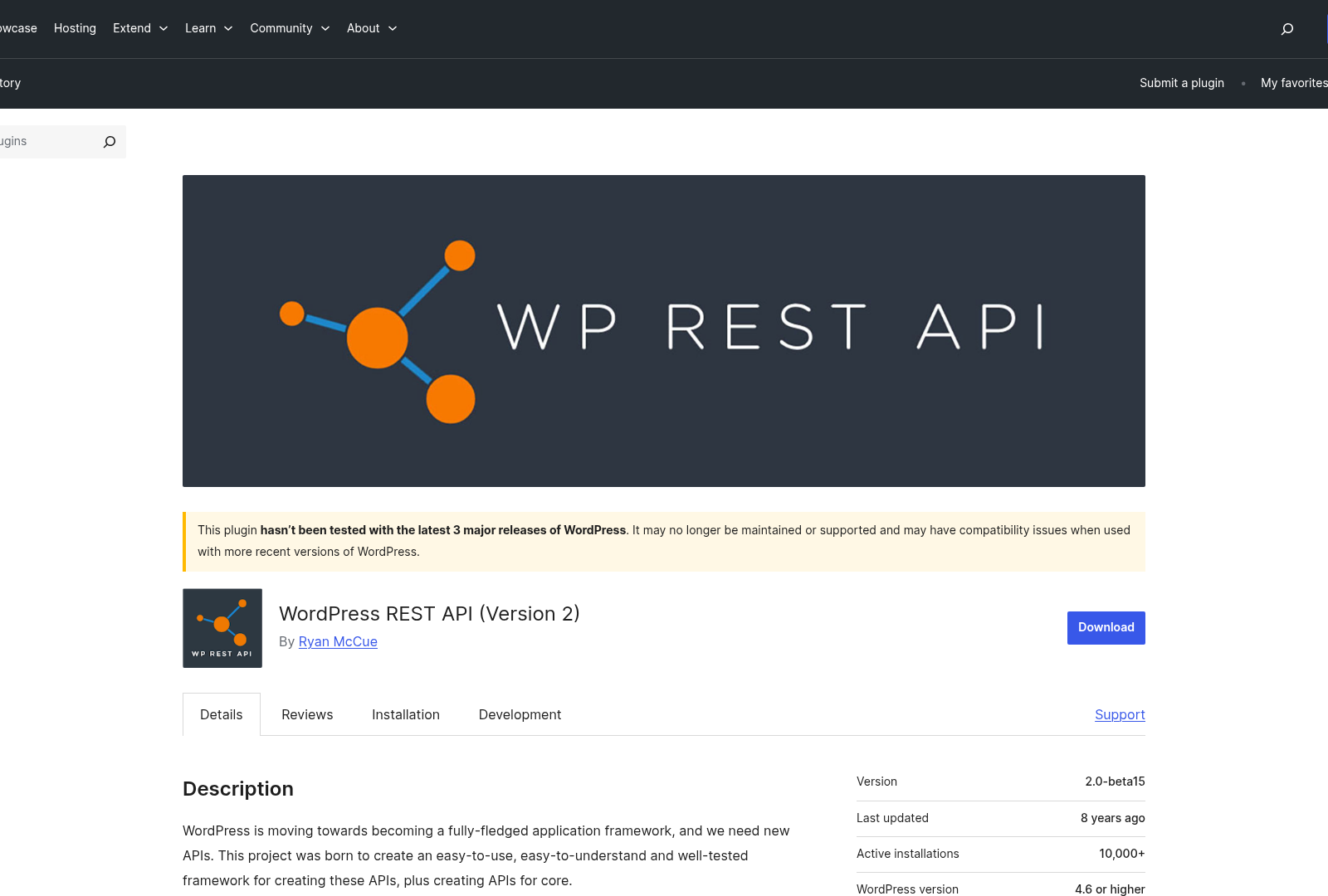
- Install the Autonomous Lead Generator plugin from Plugin Forge [1]. This plugin enables automated B2B lead generation by integrating with the WordPress REST API to identify, score, and nurture prospects. As mentioned in the [Introduction to WordPress REST API Automation] section, this plugin leverages REST API principles to streamline automation workflows.
-
Activate the plugin and navigate to its settings page to configure basic parameters. The plugin’s documentation (not explicitly detailed in sources) likely includes options to define lead sources, scoring criteria, and automation triggers.
-
If using Zapier for workflow automation, install HARPA AI’s integration tools [2]. HARPA facilitates REST API connections between WordPress and Zapier, enabling automated data synchronization across platforms. Building on concepts from [Content Generation and SEO Optimization with WordPress REST API], HARPA AI extends automation capabilities beyond content to lead generation.
API Settings Configuration
-
Enable REST API access through the Autonomous Lead Generator plugin settings [1]. The plugin’s REST API endpoints are designed to interact with external systems for lead data, though specific endpoint URLs or parameters are not detailed in the sources.
-
Configure API authentication methods. The sources do not specify supported authentication types (e.g., OAuth, API keys), but WordPress REST API best practices typically involve using nonces or token-based authentication for security. See the [Best Practices and Troubleshooting for WordPress REST API Automation] section for more details on secure authentication strategies.
-
Test API connectivity using tools like Postman or cURL. Validate that endpoints return expected data formats, such as JSON responses containing lead information [1].
Security Considerations
- Restrict API access to trusted IP addresses or domains. While the sources do not explicitly address this, securing endpoints is critical to prevent unauthorized data access or manipulation.
- Use HTTPS for all API requests. The Autonomous Lead Generator plugin [1] and HARPA AI [2] likely rely on secure connections, but explicit configuration steps for enforcing HTTPS are not provided in the sources. See the [Best Practices and Troubleshooting for WordPress REST API Automation] section for security recommendations.
- Regularly update plugins and WordPress core to address vulnerabilities. The sources do not mention update schedules, but maintaining up-to-date software is a standard security practice.
Connecting to Zapier with HARPA AI
- Set up a Zapier Web Automation workflow using HARPA AI’s REST API integration [2]. HARPA acts as a bridge between WordPress data and Zapier, allowing automated actions like sending lead details to CRM systems.
- Define triggers and actions in Zapier. For example, a new lead created via the Autonomous Lead Generator plugin [1] can trigger an email notification or data entry in a third-party tool.
- Validate data mapping between WordPress and Zapier. HARPA’s interface likely provides fields to align WordPress lead data with Zapier’s expected input formats, though specific field mappings are not detailed in the sources [2].
Limitations and Next Steps
- The provided sources [1][2] do not include granular technical details for advanced API customization. For in-depth configuration, consult the plugin developers’ documentation or WordPress REST API resources.
- If automation workflows require custom endpoints, consider using WordPress hooks or third-party tools. The sources do not specify plugin extensibility, but WordPress generally supports custom REST API endpoints via code.
- Monitor API performance and error logs. While the sources lack explicit guidance, tracking failed requests or latency issues ensures smooth lead generation automation. See the [Best Practices and Troubleshooting for WordPress REST API Automation] section for troubleshooting tips.
This section outlines foundational steps for configuring the WordPress REST API with the Autonomous Lead Generator plugin and HARPA AI for Zapier integration. For full implementation, refer to the plugins’ documentation and WordPress REST API guidelines.
Section 3: Content Generation and SEO Optimization with WordPress REST API
- Leverage autonomous lead generator plugins to draft content ideas, such as topic outlines or industry-specific copy, streamlining the B2B content planning process [1]. These plugins can integrate with the REST API to push generated content directly into WordPress, as outlined in the [Section 2] section for plugin setup.
- Use web automation platforms like HARPA AI with Zapier to extract keyword data from competitor sites, feeding insights into the REST API for content refinement [2]. This builds on concepts from the [Section 6] section, which details persona-driven content strategies.
- Acknowledge that the WordPress REST API does not natively support advanced SEO plugins like Yoast; custom endpoints or third-party integrations are required for full automation [4]. See the [Section 8] section for best practices on handling such limitations and ensuring API compatibility.
Section 4: Multi-Source Content Integration and Repurposing with WordPress REST API
- Configure the WordPress REST API to pull social media updates (e.g., Twitter posts, LinkedIn articles) into WordPress posts or pages. This centralizes content management while leveraging real-time external data [2]. For foundational setup guidance, see the [Section 2: Setting Up WordPress REST API for Automation] section.
- Use Zapier Web Automation with HARPA to sync newsletter subscriber lists and content from email platforms (e.g., Mailchimp) into WordPress. This ensures consistent messaging across email and blog content [2].
- Integrate YouTube scripts with WordPress by automating script imports via the REST API. HARPA’s automation extracts script text for repurposing as blog drafts or article outlines [2].
Repurposing Strategies
- Convert YouTube video scripts into long-form blog posts using HARPA’s text-extraction workflows. This repurposes video content for SEO-friendly articles without manual transcription [2].
- Transform social media threads into downloadable PDF guides or case studies by triggering WordPress REST API actions. This extends the lifecycle of viral posts into lead-generation assets [2].
- Automate syndication of blog posts to LinkedIn or Twitter using Zapier, repackaging headlines and snippets for platform-specific engagement [2].
Cross-Channel Promotion
- Schedule cross-posting workflows via Zapier to share WordPress blog updates on social media and newsletters simultaneously. This maximizes reach without duplicating effort [2].
- Use the REST API to embed YouTube video transcripts directly into WordPress pages, creating multimedia-rich content that drives traffic from both video and search channels [2].
- Trigger email campaigns with personalized links to blog posts or products based on user behavior tracked through WordPress forms, enhancing B2B lead nurturing [1]. For persona-based personalization techniques, refer to the [Section 6: Persona Engine and Tone Matching with WordPress REST API] section.
Workflow Optimization with Multi-Source Data
- Combine HARPA’s web-scraping capabilities with WordPress REST API endpoints to aggregate industry news, competitor content, or market research into curated reports [2].
- Set up automated content audits by linking Google Analytics data to WordPress via Zapier, identifying high-performing posts for repurposing [2].
- Leverage n8n (as referenced in [4]) to build custom workflows that merge data from CRMs, social media APIs, and WordPress for targeted B2B lead generation campaigns. Building on concepts from [Section 3: Content Generation and SEO Optimization with WordPress REST API], this approach enhances automation depth.
Limitations and Considerations
- Ensure API rate limits are monitored when integrating multiple sources, as excessive requests can degrade performance [2].
- Validate data formats (e.g., JSON structure) when repurposing content to avoid broken links or missing metadata [2].
- Test cross-platform workflows incrementally to isolate errors in automation pipelines, especially when using third-party tools like HARPA or Zapier [2].
Section 5: Real-Time Analytics and Tracking with WordPress REST API
Analytics Tool Setup
- Integrate analytics tools with your WordPress site to track user behavior and engagement metrics. WordPress REST API can facilitate automation for B2B lead generation by syncing data with dashboards and project catalogs [[3]]. As mentioned in the [Section 2] section, plugins like the Autonomous Lead Generator streamline this process by providing REST API-compatible lead capture capabilities [[1]].
- Use plugins like the Autonomous Lead Generator to streamline lead capture and analytics, ensuring real-time updates are accessible via API endpoints [[1]].
- Configure dashboards to display key metrics such as page views, form submissions, and user interactions. These tools often rely on REST API integrations for seamless data flow [[3]].
KPI Monitoring
- Monitor conversion rates and lead quality through WordPress REST API-enabled automation workflows. B2B lead generation platforms often prioritize these KPIs for performance evaluation [[3]].
- Track user engagement metrics like session duration and bounce rates to refine content strategies. REST API integrations allow these metrics to be exported to external analytics tools [[3]].
- Set up alerts for anomalies in traffic or lead generation patterns. REST API automation can trigger notifications when predefined thresholds are breached [[1]].
Data-Driven Decision Making
- Leverage REST API data to identify high-performing content and optimize underperforming pages. B2B automation systems use this approach to align content with audience needs [[3]]. Building on concepts from [Section 7], advanced techniques like custom plugin development can further enhance REST API-driven decision-making [[3]].
- Analyze lead-generation funnels using REST API-exported data to pinpoint drop-off points. Adjust workflows based on insights from tools like project catalogs or dashboards [[3]].
- Use A/B testing frameworks integrated via REST API to compare strategies for lead acquisition. This method is critical for iterating on B2B campaigns based on empirical results [[3]].
Limitations and Considerations
- Note that explicit REST API code examples or function names are not provided in the sources. Implementation details may require additional technical documentation or plugin-specific guidance [[1]][[3]]. For plugin-specific setup steps, refer to the [Section 2] section [[1]].
- Acknowledge that the sources do not specify how to configure REST API endpoints for analytics. Users should consult WordPress REST API documentation or plugin support resources (see [Section 2] for plugin installation details) for granular setup steps [[1]][[3]].
- Emphasize the need to validate data accuracy when using REST API for real-time tracking. Discrepancies between tools like project catalogs and external analytics platforms may arise without proper calibration [[3]].
Section 6: Persona Engine and Tone Matching with WordPress REST API
- Define user personas in WordPress using plugins like the Autonomous Lead Generator [1], which allows structuring buyer personas with specific attributes (e.g., industry, pain points, communication style). This ensures content aligns with target audiences during automation workflows. See the [Section 2: Setting Up WordPress REST API for Automation] section for more details on plugin installation and configuration.
- Map personas to WordPress user roles via the REST API by extending endpoints like
/wp/v2/usersto include custom fields for persona data. This enables dynamic content personalization based on user segments [1]. - Integrate persona data with lead generation tools by syncing WordPress user metadata to external CRMs using REST API hooks. For example, the Autonomous Lead Generator plugin [1] may expose endpoints to push persona-specific lead information.
Tone Matching Techniques
- Use third-party tools like HARPA AI via Zapier integrations [2] to analyze and adjust content tone before publishing through the WordPress REST API. This ensures posts, emails, or landing pages match predefined persona communication styles (e.g., formal vs. casual).
- Automate tone adjustments by triggering workflows when new posts are created. For instance, HARPA AI [2] can rephrase content to match a persona’s preferred tone and push revisions to
/wp/v2/posts/{id}using API authentication. - Leverage WordPress REST API filters to modify content dynamically based on persona. For example, a custom plugin could intercept
/wp/v2/postsrequests and apply tone-specific templates or keyword replacements [3]. Building on concepts from [Section 7: Advanced WordPress REST API Automation Techniques], custom plugins can extend these filters for advanced use cases.
Content Editing Strategies
- Automate post-editing workflows using n8n or similar tools [4] to update WordPress content based on persona feedback. For example, n8n can trigger REST API requests to
/wp/v2/posts/{id}to revise drafts or published content after A/B testing results. See the [Section 3: Content Generation and SEO Optimization with WordPress REST API] section for automated content workflows. - Implement version control for persona-specific content by storing variations in custom post types. The REST API can then retrieve the most relevant version based on user segmentation or campaign goals [1].
- Use the REST API’s bulk edit functionality to apply tone and persona adjustments across multiple posts simultaneously. This is particularly useful for updating legacy content to align with new personas [3].
Limitations and Considerations
- The Autonomous Lead Generator [1] plugin may not natively expose all persona data via REST API, requiring custom development to extend endpoints for full automation.
- Tone-matching tools like HARPA AI [2] depend on external API integrations, which may introduce latency or cost. Ensure your WordPress setup supports secure, scalable third-party connections.
- Content editing workflows [4] via REST API require careful error handling to prevent overwriting user changes. Implement version tracking or draft queues to maintain content integrity.
Multi-Platform Integration
- Combine WordPress REST API with Zapier [2] to sync persona data across platforms (e.g., Mailchimp for email campaigns, HubSpot for CRM). This ensures consistent messaging across channels.
- Use custom REST API endpoints to integrate Laravel-based systems [3] with WordPress for advanced persona analytics. For example, PHP scripts can pull WordPress content for tone analysis and push results back to posts. Building on concepts from [Section 7: Advanced WordPress REST API Automation Techniques], custom endpoints can bridge WordPress with external systems.
- Automate SEO adjustments alongside tone matching by linking tools like n8n [4] to WordPress. For instance, update meta tags or headers via
/wp/v2/posts/{id}based on persona-driven keyword strategies.
Final Checks
- Test all REST API endpoints for persona-related endpoints using tools like Postman to confirm data structure and permissions [3].
- Audit third-party plugins [1][2] for REST API compatibility and security updates to avoid conflicts with WordPress core or existing automation workflows.
- Monitor API performance using built-in WordPress tools or plugins to ensure persona and tone automation does not slow down site speed [4].
Section 7: Advanced WordPress REST API Automation Techniques
- Leverage existing plugins such as the Autonomous Lead Generator [1] as a foundation, then customize endpoints to align with specific lead capture and processing requirements. As mentioned in the Section 2: Setting Up WordPress REST API for Automation section, this plugin is installed via Plugin Forge to enable B2B lead generation workflows.
- Schedule cron jobs or use external workflow engines (e.g., n8n [4]) to execute scripts at set intervals, ensuring lead data remains up-to-date without constant user intervention. See the Section 3: Content Generation and SEO Optimization with WordPress REST API section for more details on how n8n is used to automate WordPress workflows.
- Use WordPress’s built-in authentication mechanisms, such as OAuth 2.0, when exposing custom REST API endpoints to restrict unauthorized access [1]. Building on concepts from Section 1: Introduction to WordPress REST API Automation, this ensures secure API interactions as part of advanced automation strategies.
- For complex workflows, consider combining multiple tools (e.g., WordPress REST API + n8n [4]) to create hybrid automation systems that handle diverse lead generation tasks. This approach mirrors the multi-source integration techniques discussed in Section 4: Multi-Source Content Integration and Repurposing with WordPress REST API.
- Use HARPA AI’s REST API node setup to automate lead research workflows [2]. This ensures reliable B2B lead searches across industries by leveraging pre-configured automation strategies outlined in Section 8: Best Practices and Troubleshooting for WordPress REST API Automation.
Section 8: Best Practices and Troubleshooting for WordPress REST API Automation
Best Practices for Automation
- Use HARPA AI’s REST API node setup to automate lead research workflows [2]. This ensures reliable B2B lead searches across industries by leveraging pre-configured API integrations. As mentioned in the [Introduction to WordPress REST API Automation](section 1) section, these integrations rely on foundational REST API principles for seamless operation.
- Implement WordPress plugins like the Autonomous Lead Generator [1] to streamline lead generation tasks without manual intervention. See the [Setting Up WordPress REST API for Automation](section 2) section for more details on plugin installation and configuration.
- Validate API endpoints and authentication protocols before deploying automation workflows [2]. HARPA emphasizes secure REST API configurations to prevent access issues during lead retrieval.
Common Errors and Debugging
- Monitor API response codes for failed lead searches, such as 404 errors indicating invalid endpoints [2]. HARPA’s debugging tools can trace misconfigured API nodes in automation workflows.
- Address authentication failures by verifying WordPress REST API permissions [1]. Plugins like the Autonomous Lead Generator require proper user roles to access endpoints.
- Test lead search parameters for consistency, as incomplete or incorrect filters may return empty datasets [2]. HARPA AI recommends iterative testing of search queries to refine results.
Optimization Techniques
- Batch lead generation requests using HARPA’s REST API nodes to minimize server load [2]. This reduces redundant API calls and accelerates data retrieval for large B2B datasets.
- Schedule automation workflows during off-peak hours to avoid WordPress server throttling [1]. The Autonomous Lead Generator plugin supports time-based triggers for optimal performance.
- Cache frequently accessed lead data locally to decrease dependency on real-time API queries [2]. HARPA integrates caching mechanisms to maintain data accuracy while improving response times.
Multi-Tool Integration Strategies
- Combine HARPA’s REST API automation with WordPress plugins [1][2] to create hybrid workflows. For advanced customization options, refer to the [Advanced WordPress REST API Automation Techniques](section 7) section.
- Leverage HARPA’s built-in error logging alongside WordPress debugging tools [2] to identify bottlenecks in automation pipelines. Cross-referencing logs simplifies troubleshooting for complex integrations.
Limitations and Workarounds
- Acknowledge that WordPress REST API rate limits may restrict high-volume lead generation [1]. Use HARPA’s batching strategies [2] to stay within allowed request thresholds. See the [Advanced WordPress REST API Automation Techniques](section 7) section for custom solutions to handle rate limits.
- If plugins like the Autonomous Lead Generator fail to process leads, check for conflicts with existing WordPress themes or plugins [1]. Isolate automation workflows in staging environments before deployment.
These strategies ensure WordPress REST API automation remains efficient, secure, and scalable for B2B lead generation tasks. Always reference HARPA’s documentation [2] and plugin-specific guides [1] for implementation details.
References
[1] Autonomous Lead Generator - WordPress Plugin | Plugin Forge - https://bitghost.com/shop/%F0%9F%A7%8A-autonomous-lead-generator/
[2] Zapier Web Automation with HARPA - HARPA AI - https://harpa.ai/grid/zapier-integration
[3] Farhana A. | Laravel, PHP, WordPress, Shopify - https://www.upwork.com/freelancers/farhanaakter25
[4] Automate SEO Tasks with n8n: The Ultimate Workflow Guide | by ... - https://medium.com/@dejanmarkovic_53716/automate-seo-tasks-with-n8n-the-ultimate-workflow-guide-0bf068c806c5
Frequently Asked Questions
1. What is the WordPress REST API and how does it aid in B2B lead generation?
The WordPress REST API is a built-in interface that allows programmatic interaction with WordPress data via HTTP requests. It enables developers to create, read, update, and delete content (e.g., posts, users) remotely. In B2B lead generation, it bridges WordPress sites with automation tools, streamlining tasks like lead scoring, data syncing, and CRM integration. For example, it can automate updating lead information in real-time or triggering workflows when new leads submit forms, reducing manual effort and improving efficiency.
2. How do I set up the WordPress REST API for automation?
To set up the REST API for automation:
- Enable the REST API: Modern WordPress installations include it by default. Test it by visiting
yoursite.com/wp-json/in your browser. - Install plugins: Use plugins like Autonomous Lead Generator or WP Webhooks to simplify REST API workflows without coding.
- Authentication: Secure access using OAuth 1.0a, JWT, or API keys (plugins like Application Passwords help manage these).
- Custom endpoints: Add custom endpoints via plugins or code for specific tasks (e.g., syncing lead data).
- Integrate with tools: Connect to automation platforms like Zapier or HARPA AI using REST API nodes to automate lead capture and nurturing.
3. Which plugins or tools are recommended for REST API automation in B2B lead generation?
Key plugins and tools include:
- Autonomous Lead Generator: Automates lead scoring, segmentation, and nurturing via REST API integrations.
- HARPA AI: Combines REST API with Zapier for tasks like web scraping and lead research.
- WP Fusion: Syncs lead data between WordPress and CRMs like HubSpot or Salesforce.
- WP Webhooks: Triggers custom REST API actions (e.g., sending form submissions to a CRM).
- Zapier: Automates workflows by connecting WordPress REST API endpoints to external apps (e.g., email marketing tools).
Always prioritize security when selecting plugins, ensuring they support authentication and encryption.
4. Can you provide an example of a workflow automated via the WordPress REST API?
Sure! A common workflow involves:
- Lead Capture: A user submits a form on your WordPress site (e.g., via Gravity Forms).
- REST API Trigger: The form data is sent to a custom REST API endpoint.
- Automated Actions:
- Sync the lead to a CRM (e.g., Salesforce) using a webhook.
- Assign a lead score based on behavior (e.g., page views, time spent).
- Trigger an email nurture sequence via Mailchimp or HubSpot.
This workflow reduces manual data entry and ensures leads are prioritized quickly.
5. How can I secure my WordPress REST API integrations?
To secure REST API integrations:
- Use authentication: Implement OAuth, JWT, or API keys to restrict access.
- Limit permissions: Assign nonces (WordPress’ security tokens) for non-public endpoints.
- Rate limiting: Prevent brute-force attacks by capping API requests (e.g., via plugins like WP API Rate Limiting).
- HTTPS: Always use HTTPS to encrypt data in transit.
- Custom permissions: Create custom roles with minimal access for API users (e.g., a "Lead Reader" role).
- Monitor logs: Use plugins like WP Security Audit Log to track API activity for suspicious behavior.
6. How do I sync lead data from WordPress to a CRM using the REST API?
To sync lead data:
- Export data: Use the REST API to retrieve leads (e.g.,
GET /wp/v2/users). - Map fields: Align WordPress user/meta fields with CRM fields (e.g., email, company name).
- Automate syncing: Use tools like Zapier or WP Fusion to connect REST API endpoints to your CRM. For example, a Zapier "Webhook by Zapier" trigger can push form submissions to Salesforce.
- Schedule updates: Set up cron jobs or plugins to sync data at regular intervals.
Always test integrations with a small dataset first to ensure accuracy.
7. What are common issues when using the WordPress REST API for automation?
Common issues include:
- Authentication errors: Misconfigured API keys or missing nonces.
- Rate limiting: Exceeding API request limits, especially with large datasets.
- Endpoint conflicts: Custom endpoints clashing with default WordPress routes.
- Data formatting: Mismatched JSON structures causing sync failures.
- Caching: Caching plugins delaying real-time data updates.
To troubleshoot, use REST API debugging tools (e.g., Postman) and consult plugins like Debug Bar for detailed error logs. Always test workflows in a staging environment before deploying to production.