Crawl Errors in Google Search Console: How to Diagnose and Fix Them

Key Takeaways
- Crawl errors block Google from indexing pages, causing traffic drops (e.g., 40% loss for one B2B company, reversed with 70% recovery after fixes).
- Sites with 100+ crawl errors often see a 20–30% decline in indexed pages due to blocked crawlers and fragmented authority.
- A single 500 server error can prevent Google from crawling entire sections of a website, halting indexing and traffic growth.
- Fixing redirect loops reduces crawl errors by 50% for SaaS businesses, boosting organic sessions by 15% within months.
- Unfixed crawl errors waste content efforts—optimized pages remain invisible in search results if blocked by technical issues.
- Broken links or dead-end pages stop crawlers from discovering new content, slowing indexing and diluting site authority.
- Resolving crawl errors ensures published content gains visibility, even if it’s keyword-optimized but initially inaccessible.
Why Crawl Errors Matter
Crawl errors directly block Google from accessing and indexing your web pages, which can slash your site’s traffic and rankings. When search engine crawlers hit dead ends like broken links or server errors, they can’t retrieve your content, leaving pages invisible in search results. As mentioned in the Understanding Crawl Errors in Google Search Console section, these errors signal technical issues that prevent proper indexing. For example, a B2B software company once lost 40% of its organic traffic due to unresolved 404 errors, only to regain 70% of that traffic after fixing the crawl issues. These errors don’t just harm visibility-they also waste content creators’ efforts if their work isn’t indexed.
How Crawl Errors Impact Website Performance
Crawl errors create a domino effect: broken pages prevent crawlers from discovering new content, slow indexing, and fragment your site’s authority. A single unresolved 500 server error, for instance, might stop Google from crawling an entire section of your site. According to technical SEO guides, sites with 100+ crawl errors often see a 20–30% drop in indexed pages. This isn’t hypothetical-another business in the SaaS industry reported a 50% reduction in crawl errors after fixing redirect loops, which directly correlated with a 15% rise in monthly organic sessions.
Ignoring these issues means missing out on opportunities to rank for competitive keywords. If a content creator publishes a blog post but it’s blocked by a crawl error, it can’t appear in search results-even if it’s perfectly optimized. Building on concepts from the Monitoring Crawl Error Trends and Implementing Fixes section, fixing crawl errors ensures your content gets the exposure it’s designed for.
Who Benefits From Resolving Crawl Errors
B2B marketers and enterprise teams gain the most from addressing crawl errors. For B2B marketers, every indexed page is a potential lead generator. A technical SEO checklist from Google highlights that unresolved crawl errors can distort analytics, making it look like campaigns underperform when the real issue is technical. Content creators, especially those managing large websites, need to resolve these errors to ensure their guides, case studies, and whitepapers reach the right audiences.
E-commerce businesses also face high stakes: a misconfigured robots.txt file or broken internal links can hide product pages from search engines, directly cutting into sales. One online retailer fixed 200+ crawl errors in its product catalog and saw a 25% increase in indexed pages within two months. This isn’t just about visibility-it’s about making sure your website functions as an accurate reflection of your offerings.
The Connection Between Crawl Errors and SEO Success
SEO is built on technical foundations, and crawl errors are a critical part of that. When crawlers can’t access your site, your SEO efforts-like keyword research or backlink building-fall flat. As mentioned in the Understanding Crawl Errors in Google Search Console section, Google’s updated crawl error reporting now splits issues into site-wide and URL-specific errors, making it easier to prioritize fixes. For example, a site-wide error like a server timeout needs immediate action, while a single 404 page might only require a redirect.
Fixing crawl errors isn’t a one-time task. It’s part of ongoing SEO maintenance. Tools like AnyPost.ai help teams track these issues in real time, ensuring problems are resolved before they impact rankings. After all, SEO is about accessibility: if Google can’t crawl your site, your audience can’t find it. Regularly auditing crawl errors in Google Search Console isn’t just technical housekeeping-it’s a strategic move to protect your site’s search visibility and business outcomes.
Understanding Crawl Errors in Google Search Console
Crawl errors in Google Search Console (GSC) occur when Google’s crawlers fail to access or process specific pages on your site. These errors signal technical issues that prevent proper indexing and can hurt your site’s visibility. Understanding their types and how to identify them is critical for maintaining a healthy website. As mentioned in the Why Crawl Errors Matter section, these errors directly block Google from accessing pages, which can significantly reduce traffic and rankings.
What Are the Main Types of Crawl Errors?
Crawl errors fall into two primary categories: server errors and client errors. Server errors (5xx status codes) stem from server-side issues like overloads or misconfigurations, while client errors (4xx status codes) indicate problems with specific URLs, such as broken links or missing pages (404 errors). Google’s updated error classification also divides issues into site errors, which affect your entire site (e.g., server downtime), and URL errors, which target individual pages (e.g., a 404 on a single blog post).
For example, a 500 Internal Server Error might prevent Google from crawling your homepage entirely, whereas a 404 error on a product page means that specific URL is inaccessible. The distinction matters because site errors often require urgent fixes to restore crawling, while URL errors can be addressed individually.
How Do You Identify Crawl Errors in Google Search Console?
Google Search Console’s Pages report and Crawl stats provide the primary tools for diagnosing issues. Start by managing to the Coverage report (under the Indexing section), where Google lists all crawl errors. Each entry includes the affected URL, error type, and date detected. Building on concepts from the Using the URL Inspection Tool and Crawl Stats for Error Diagnosis section, filter the report by error type to focus on critical issues. For instance, select Crawl errors and then Not found (404) to review missing pages. Use the URL Inspection tool to test specific URLs and see how Google processes them. If a page shows a Server error (5xx), investigate server logs for underlying issues like resource limits or configuration mistakes.
The Crawl stats tab reveals broader trends, such as sudden drops in crawl rates or spikes in error frequency. A sharp increase in 404 errors might indicate broken internal links, while recurring 500 errors suggest unstable server performance. Regularly reviewing these reports helps catch issues before they impact your site’s search presence.
What Do Common Crawl Errors Mean, and How Often Do They Occur?
Some crawl errors are more frequent than others. 404 Not Found errors are the most common, often caused by outdated links or deleted content. A 404 isn’t always a problem-Google may occasionally request outdated URLs-but a large number suggests broken links that need fixing.
500 Internal Server Error and 503 Service Unavailable are server-side errors that typically occur during high traffic or server maintenance. These are less frequent than 404s but more urgent to resolve, as they block Google from accessing your site entirely.
Redirect errors (e.g., Soft 404 or Redirect loop) also appear regularly. A soft 404 occurs when a page exists but returns a 200 status code despite being blank or irrelevant. Redirect loops happen when a URL redirects to itself, trapping crawlers and users in an infinite cycle. Resolving Soft 404s, redirect errors, and blocked-by-robots.txt issues requires a methodical approach, as discussed in the Resolving Soft 404s, Redirect Errors, and Blocked by Robots.txt Errors section.
To differentiate between site errors and URL errors, look at the scope. Site errors, like a 500 error affecting your homepage, block crawling across the entire domain. URL errors, such as a 404 on a single blog post, only impact that specific page. Addressing site errors often requires server-side fixes, while URL errors can be resolved by updating links, restoring content, or implementing proper redirects.
By understanding these distinctions and using Google Search Console’s tools, you can systematically identify and resolve crawl errors to ensure your site remains accessible and indexable. For example, if Google reports a 404 for a page you no longer host, you might redirect it to a relevant page or create a custom 404 template to guide users. Regular monitoring and prompt fixes will maintain your site’s SEO health and user experience.
Diagnosing Server Errors (5xx) and Not Found Errors (404)
To diagnose and fix server errors (5xx) and not found errors (404) in Google Search Console, start by identifying the root cause using the URL Inspection tool and Crawl stats, as detailed in the Using the URL Inspection Tool and Crawl Stats for Error Diagnosis section. These tools reveal how Googlebot interacts with your site, highlighting specific URLs causing issues and trends over time. Once identified, address server errors by resolving server misconfigurations or code faults, and fix 404 errors by restoring missing pages or redirecting broken links. Below is a detailed breakdown of each step.
How to Diagnose 5xx Server Errors
Begin by using the URL Inspection tool in Google Search Console to test problematic URLs. Enter the URL directly, and Google will confirm if it returns a server error. For broader insights, review the Crawl stats report (found under Settings > Crawl stats) to identify spikes in crawl rates or server response times. A sudden increase in 5xx errors often indicates server overload or backend code failures.
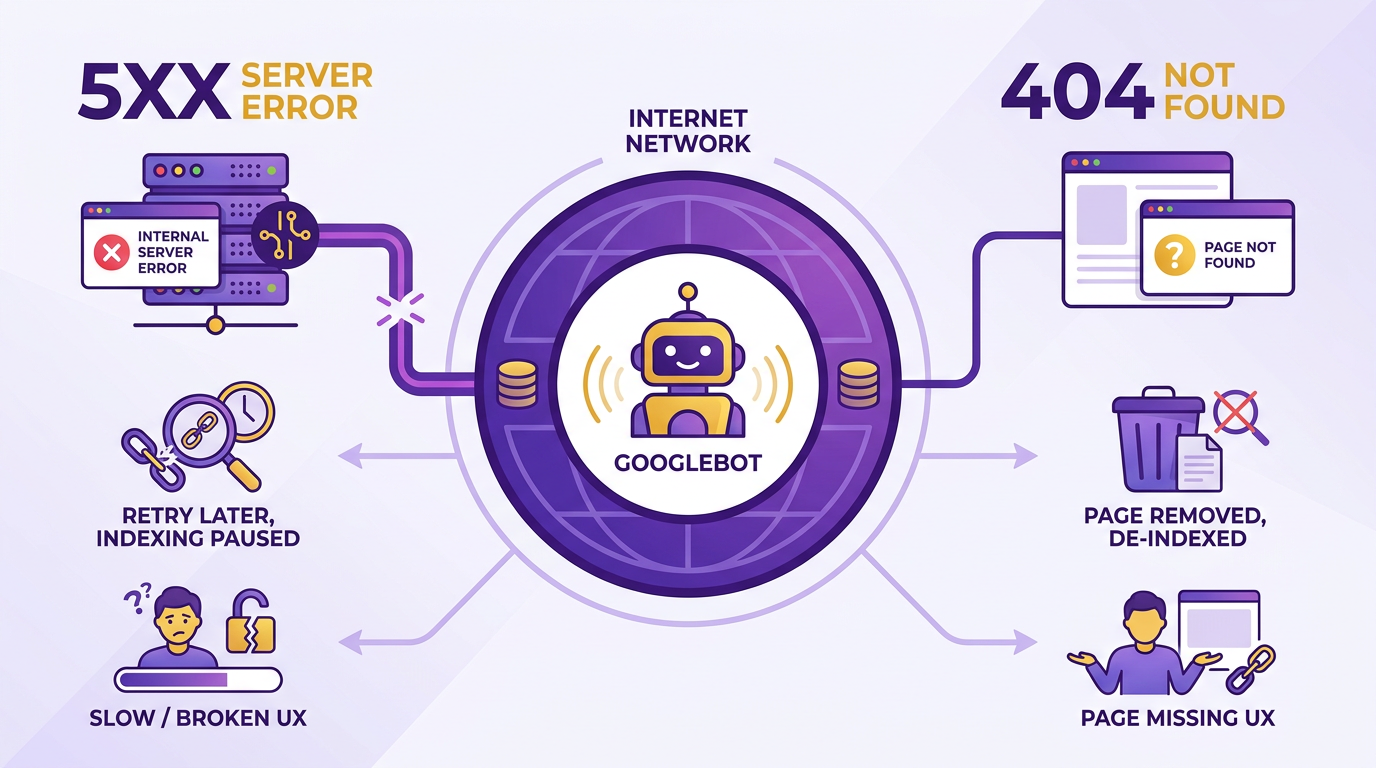
Check server logs to pinpoint the exact cause. Look for entries showing 5xx status codes (e.g., 500, 503) and cross-reference timestamps with traffic spikes. For example, a 503 Service Unavailable error might stem from a server temporarily unable to handle requests due to high traffic. Faulty plugins or scripts can also trigger 500 Internal Server Errors.
Common Causes of 5xx Server Errors
- Server Overload: High traffic or insufficient hosting resources can crash servers.
- Misconfigured Server Settings: Incorrect permissions or missing dependencies disrupt code execution.
- Faulty Code: Bugs in server-side scripts (e.g., PHP, Python) or database connection errors.
- Third-Party Service Failures: Broken integrations with payment gateways or APIs.
If you notice recurring 5xx errors during traffic surges, upgrading hosting plans or optimizing code efficiency can mitigate the issue. For example, a site experiencing 503 errors during sales events might benefit from auto-scaling cloud hosting.
Step-by-Step Process to Fix 5xx Errors
- Review Server Logs: Identify error messages (e.g., “Out of memory”) and trace them to specific files or scripts.
- Test Server Load: Use tools like Apache Bench or JMeter to simulate traffic and stress-test your server.
- Update Code: Patch vulnerabilities or optimize resource-heavy scripts. For instance, replace slow database queries with cached results.
- Monitor Post-Fix: After implementing changes, resubmit the affected URLs via the Request Indexing button in the URL Inspection tool. For ongoing tracking, refer to the Monitoring Crawl Error Trends and Implementing Fixes section.
For persistent issues, consult your hosting provider. Many platforms, like AWS or Cloudflare, offer diagnostics to resolve backend bottlenecks.
How to Diagnose 404 Not Found Errors
Use the Coverage report in Google Search Console to list all 404 errors, as outlined in the Understanding Crawl Errors in Google Search Console section. Filter by “Not found (404)” to see which URLs Googlebot attempted to crawl but couldn’t locate. The URL Inspection tool also lets you test specific URLs to confirm if they return a 404. Cross-reference this with your Crawl stats to determine if the errors correlate with recent site changes.
Common Causes of 404 Errors
- Deleted or Moved Pages: Content removed without redirects or renamed URLs.
- Broken Internal Links: Links pointing to non-existent pages.
- Incorrect Redirects: Misconfigured 301 or 302 redirect chains.
- Crawling Indexing Issues: Googlebot following outdated backlinks from external sites.
A common scenario is a blog post deleted without a redirect, leading to 404s for both users and search engines.
Step-by-Step Process to Fix 404 Errors
- Audit Broken Links: Use tools like Screaming Frog to crawl your site and export 404 URLs.
- Create Redirects: For deleted pages, set up 301 redirects to relevant content. For example, if
/old-productis removed, redirect it to/new-product. - Custom 404 Page: Design a user-friendly 404 page with search functionality to help visitors manage.
- Resubmit Sitemap: After fixes, submit an updated XML sitemap to Google Search Console to accelerate reindexing. For tracking progress, refer to the Monitoring Crawl Error Trends and Implementing Fixes section.
For external links causing 404s, use Google’s URL Removal Tool to request their removal from search results if the content is permanently gone.
By systematically addressing 5xx and 404 errors using these methods, you ensure smoother crawling and indexing, improving both user experience and search visibility.
Resolving Soft 404s, Redirect Errors, and Blocked by Robots.txt Errors
Resolving soft 404s, redirect errors, and blocked-by-robots.txt issues in Google Search Console requires a methodical approach to ensure search engines can crawl and index your site effectively. These errors often stem from misconfigurations, outdated content, or incorrect directives, and fixing them improves both user experience and SEO performance. Below is a step-by-step guide to diagnose and address each issue..
How Do Soft 404 Errors Affect Your Site?
Soft 404s occur when a page returns a 200 OK status code but lacks meaningful content or fails to exist. Search engines may index these pages, diluting your site’s authority and wasting crawl budget. As mentioned in the Understanding Crawl Errors in Google Search Console section, crawl errors signal technical issues that prevent proper indexing. For example, a URL like /blog/post-123 might return a generic error message or a redirect to the homepage, confusing crawlers. To identify soft 404s:
- Go to Google Search Console > Coverage report.
- Filter by “Soft 404” errors.
- Export the list to analyze problematic URLs.
Common causes include outdated redirects pointing to non-existent pages, template errors, or thin content. For instance, a redirect chain like /old-page → /new-page → /missing-page creates a soft 404. To fix:
- Update redirects to valid pages using 301 permanent redirects.
- Create custom 404 error pages to guide users back to relevant content.
- Delete or repurpose pages with minimal content..
How Can You Diagnose Redirect Errors?
Redirect errors-such as infinite loops or broken chains-hinder crawlers from accessing content. Building on concepts from the Using the URL Inspection Tool and Crawl Stats for Error Diagnosis section, the URL Inspection tool in Google Search Console can test specific URLs for redirect issues. For example, if example.com/product-a redirects to example.com/404, Google flags it as a redirect error.
To resolve this:
- Export the redirect error list and use a tool like Link Redirect Trace to trace the redirect path.
- Fix broken chains by updating the final destination to a valid page.
- Limit redirects to two steps max. For example,
/old-page → /new-pageis acceptable, but/old → /temp → /finalrisks errors.
A common fix is replacing faulty 302 temporary redirects with 301 permanent ones. If a page no longer exists, redirect it to a relevant category page or the homepage..
What Causes Blocked-by-Robots.txt Errors?
Blocked-by-robots.txt errors occur when Googlebot is denied access to pages via incorrect directives in your robots.txt file. For example, disallowing /search might prevent crawlers from indexing search result pages. To diagnose:
- Use the Robots.txt Tester in Google Search Console to simulate Googlebot’s access.
- Check if critical pages (e.g.,
/sitemap.xml,/blog/) are accidentally blocked.
Common causes include overusing Disallow: directives or blocking user agents like Googlebot-Image. For instance, a line like Disallow: /private/ might prevent access to important assets. To fix:
- Remove or adjust restrictive rules. For example, change
Disallow: /toAllow: /if blocking the entire site was unintentional. - Use
Crawl-delaysparingly to avoid slowing crawlers. - Ensure
User-Agent: *applies to all directives unless targeting specific bots..
Proactive Steps to Prevent Future Errors
After fixing existing issues, implement these strategies to avoid recurring problems:
- Audit redirects regularly: Use tools like Screaming Frog to detect chains or loops.
- Monitor crawl stats: Check Google Search Console’s Crawl stats tab for sudden drops in request rates.
- Test robots.txt: Before deploying changes, validate your
robots.txtusing Google’s Robots Testing Tool.
Fixing these errors not only improves indexing but also enhances user navigation. For example, replacing soft 404s with 301 redirects can recover lost traffic by directing users to relevant content. Similarly, unblocking key pages via robots.txt ensures search engines can find new content faster.
By addressing these issues systematically, you create a cleaner, more crawlable site structure that aligns with Google’s expectations.
Using the URL Inspection Tool and Crawl Stats for Error Diagnosis
Google Search Console’s URL Inspection Tool and Crawl Stats provide actionable insights to diagnose crawl errors. Use the URL Inspection Tool to test individual URLs and view live page renderings, while Crawl Stats reveals patterns like sudden drops in crawl rates. Together, these tools help identify technical issues and track progress after fixes. Below, explore how to use them effectively.
How Do You Use the URL Inspection Tool for Crawl Errors?
The URL Inspection Tool lets you test specific URLs for crawlability and view how Google sees your pages. Start by entering a URL in the “URL inspection” tab of Google Search Console. If Google has crawled the page, you’ll see a “Valid” status and a preview of the page content. If the page returns a 404 error or server error, the tool highlights the issue and explains why Google cannot access it.
For pages not yet indexed, click “Request Indexing” to ask Google to recrawl the URL. This is especially useful after fixing errors like broken links or server issues. Use the “Test Live URL” feature to simulate Google’s crawl and see if the page loads correctly. If the rendered page shows a login prompt or error, adjust your site’s authentication settings to allow crawlers access. As mentioned in the Diagnosing Server Errors (5xx) and Not Found Errors (404) section, this tool is critical for pinpointing server-side or content-specific issues.
How Do Crawl Stats Help Identify Error Trends?
Crawl Stats, found under Settings > Crawl stats, tracks Googlebot activity over time. Look for sudden spikes in “Crawl errors” or drops in “Requests per second” to identify systemic issues. For example, a sharp increase in soft 404 errors might indicate broken internal links, while a server error surge could point to backend instability.
Compare data across timeframes to spot recurring problems. If you notice daily spikes in crawl errors, it could mean Googlebot is hitting rate limits or your server is timing out. Use this data to prioritize fixes-address high-frequency errors first. If crawl rates are low, ensure your sitemap is correctly submitted and free of outdated URLs. Building on concepts from the Monitoring Crawl Error Trends and Implementing Fixes section, analyzing these trends helps contextualize isolated errors within broader technical performance.
Step-by-Step Process to Diagnose and Fix Crawl Errors
- Identify Errors in Coverage Report. Go to Coverage > Crawl errors in Google Search Console. Filter by URL error or site error to see which pages are problematic. Look for patterns: Are errors clustered on a specific section of your site?
- Inspect URLs with the URL Tool. Copy a problematic URL into the URL Inspection Tool. Check the “Current indexing status” and scroll to the “Crawl” section to see if Googlebot encountered a server error (5xx) or not found (404).
- Analyze Crawl Stats for Trends. In Settings > Crawl stats, review “Crawl rate” and “Crawl errors” over the past 30 days. Export the data to a spreadsheet for deeper analysis. A steady rise in errors may signal a technical regression.
- Fix Issues and Request Indexing. For 404 errors, either restore the page or redirect it. For server errors, check your hosting provider’s logs. After resolving issues, use the “Request Indexing” button in the URL Tool to speed up re-crawling.
- Monitor Progress. Revisit the Coverage Report weekly to confirm errors are resolved. If crawl rates remain low, audit your sitemap for inconsistencies and resubmit it via Google Search Console.
Tips for Troubleshooting Missing Pages
- Check Robots.txt: Ensure your robots.txt file isn’t blocking Googlebot from accessing critical pages. As outlined in the Resolving Soft 404s, Redirect Errors, and Blocked by Robots.txt Errors section, misconfigured robots.txt files are a common cause of crawl errors.
- Validate Sitemap URLs: Submit an updated sitemap to Google Search Console to guide crawlers to fixed pages.
- Use the URL Tool for Redirects: If a page redirects incorrectly, the URL Tool will show the final destination. Adjust redirects to point to valid content.
- Avoid Login Walls: Googlebot cannot access pages behind login prompts. Test pages with the URL Tool to confirm they’re crawlable.
By combining the URL Inspection Tool’s granular diagnostics with Crawl Stats’ broader trends, you can systematically resolve crawl errors and improve indexing. For persistent issues, consider using AnyPost.ai’s automated SEO tools to streamline audits and track fixes at scale.
Monitoring Crawl Error Trends and Implementing Fixes
To track crawl errors effectively, start by accessing the Coverage report in Google Search Console (GSC). This report categorizes errors into types like URL errors (individual page issues) and site errors (broader problems affecting entire sections of your site). Use the URL Inspection tool to check specific pages for crawlability and indexing status, as detailed in the Using the URL Inspection Tool and Crawl Stats for Error Diagnosis section. Export error lists regularly to identify patterns, such as recurring 404 errors or redirect chains. For redirect issues, run URLs through tools like Link Redirect Trace to diagnose where the chain breaks.
AnyPost.ai streamlines this process by integrating GSC data with Google Analytics. Its dashboard highlights crawl errors alongside traffic metrics, helping you spot correlations-like a sudden spike in errors during a content update or server maintenance [AnyPost.ai].
How to Analyze Crawl Error Data for Patterns
Analyzing crawl error data requires looking for trends over time. Export error reports and sort them by frequency and impact. For example, if 404 errors cluster around outdated blog posts, it may signal poor internal linking or expired content. Use GSC’s Crawl Stats to review server response times and identify bottlenecks during peak traffic, as outlined in the Using the URL Inspection Tool and Crawl Stats for Error Diagnosis section.
Look for seasonal patterns too. A retail site might see crawl errors during product launches if new URLs aren’t properly indexed. Tools like Semrush’s GSC error guide recommend grouping errors by HTTP status codes (e.g., 5xx server errors vs. 4xx client errors) to prioritize fixes, a concept expanded in the Diagnosing Server Errors (5xx) and Not Found Errors (404) section.
Step-by-Step Fixes to Prevent Future Crawl Errors
- Correct Server Errors: If GSC flags 5xx errors, work with your hosting provider to resolve server configuration issues. Ensure server uptime exceeds 99% to avoid crawl disruptions, as discussed in the Diagnosing Server Errors (5xx) and Not Found Errors (404) section.
- Fix Redirect Chains: Use 301 redirects for permanent moves and eliminate redirect loops. For example, if
example.com/old-pageredirects toexample.com/new-pageand then toexample.com/canonical, update the redirect chain to point directly to the canonical URL. - Address 404 Errors: Replace broken links with updated URLs or set up custom 404 pages that suggest related content. For high-traffic pages, use GSC’s Remove URLs tool to expedite reindexing.
- Resubmit Sitemaps: After fixing errors, resubmit your sitemap via GSC’s Sitemaps section to notify Google of updates.
AnyPost.ai automates many of these steps. Its built-in GSC integration alerts you to new errors in real time and tracks fix implementation, reducing manual monitoring efforts [AnyPost.ai].
Prioritizing Fixes Based on Impact and Frequency
Not all crawl errors are equally critical. Use GSC’s Priority column to focus on errors affecting high-traffic pages or critical conversion paths. For example, a 404 error on a product page with 1,000+ monthly visits should be fixed before a rare error on an archive page.
Create a spreadsheet to rank errors by:
- Frequency: How often Google encounters the error.
- Impact: Estimated traffic loss based on Google Analytics.
- Fixability: How easy it is to resolve (e.g., updating a link vs. reconfiguring a server).
AnyPost.ai’s analytics layer simplifies this by scoring errors based on these factors, ensuring teams tackle the most damaging issues first [AnyPost.ai].
Example: Fixing Redirect Errors in Practice
A common scenario involves redirect errors after a site migration. Suppose GSC shows example.com/old-product returns a 302 temporary redirect instead of a 301 permanent one. This confuses crawlers and dilutes link equity.
Fix Process:
- Audit all redirects using GSC’s Redirect Errors report.
- Update 302s to 301s via your CMS or server configuration.
- Test redirects with tools like Screaming Frog to confirm they resolve cleanly.
- Monitor GSC for the next 30 days to ensure crawlers access the new URLs.
By combining GSC data with AnyPost.ai’s automated alerts, teams can catch these issues faster and reduce indexing delays [AnyPost.ai].
Proactive Monitoring for Long-Term Crawl Health
Crawl errors often resurface after content updates or technical changes. Schedule weekly reviews of GSC’s Coverage report to catch new issues early. Use AnyPost.ai to set up custom alerts for error spikes, such as a sudden increase in 5xx server errors during peak hours [AnyPost.ai].
For large sites, consider automating fixes with tools that update links or generate 301 redirects in bulk. However, always verify changes manually to avoid introducing new errors. Regular internal audits-using tools like GSC’s URL Crawl Tester-ensure crawlers can access your content consistently.
Conclusion and Next Steps
To wrap up, addressing crawl errors in Google Search Console requires a systematic approach focused on identifying issues, implementing fixes, and maintaining vigilance to prevent recurrence. By understanding the difference between site errors (broader infrastructure problems) and URL errors (specific broken links), you can prioritize fixes effectively. Regular monitoring ensures your site remains accessible to search crawlers, preserving your SEO performance.
As mentioned in the Understanding Crawl Errors in Google Search Console section, categorizing errors as site or URL-based is critical for efficient troubleshooting. Building on concepts from the Diagnosing Server Errors (5xx) and Not Found Errors (404) section, resolving server errors often involves collaboration with your hosting team, while 404s demand direct action like redirects or page restoration.
For long-term prevention, the Monitoring Crawl Error Trends and Implementing Fixes section emphasizes the importance of routine reviews in Google Search Console’s Coverage report. Pairing these practices with tools like AnyPost.ai ensures errors are tracked and resolved before they impact SEO. By integrating these strategies, you create a resilient website structure that adapts to technical challenges while maintaining search visibility.
Frequently Asked Questions
1. What are crawl errors and why do they matter for SEO?
Crawl errors block Google from indexing pages, causing traffic drops. For example, a B2B company lost 40% of traffic due to 404 errors but recovered 70% after fixes. Unresolved errors render content invisible, even if optimized.
2. How do crawl errors impact website performance?
Sites with 100+ crawl errors often see a 20–30% decline in indexed pages. A single 500 server error can halt crawling of entire sections, slowing indexing and diluting site authority.
3. What are the most common types of crawl errors?
Common errors include 404 (broken links), 500 (server errors), and redirect loops. Fixing redirect loops reduced crawl errors by 50% for SaaS businesses, boosting organic sessions by 15%.
4. How can I check for crawl errors in Google Search Console?
Use the “Crawl Errors” report in Google Search Console. Monitor trends weekly to identify issues like soft 404s or server errors. Prioritize errors with high crawl counts first.
5. What steps fix broken links causing crawl errors?
Update or remove broken links. For 404 errors, set 301 redirects to relevant pages. A B2B company recovered 70% of lost traffic by fixing 404s, ensuring crawlers accessed updated content.
6. What happens if crawl errors are left unresolved?
Unfixed errors waste content efforts—optimized pages stay invisible. They also fragment site authority, reducing indexed pages by 20–30%. A single 500 error can block entire site sections.
7. Can crawl errors affect new content visibility?
Yes. Broken links or server errors stop crawlers from discovering new pages. Fixing crawl errors ensures fresh content gets indexed, even if keyword-optimized but initially inaccessible.