
XML Sitemaps: The Complete Guide to Creation, Submission, and Errors

Key Takeaways
- Structure XML sitemaps with
<urlset>and<url>tags, including<loc>,<lastmod>,<changefreq>, and<priority>for each URL. - Use absolute HTTPS URLs in
<loc>tags to ensure search engines correctly identify page locations. - Validate XML syntax with tools like Google’s Sitemap Validator to detect errors such as invalid characters or mismatched tags.
- Begin manual creation with the XML declaration and namespace:
<?xml version="1.0"...>and<urlset xmlns="http://www.sitemaps.org/schemas/sitemap/0.9">. - Assign priority values between 0.0 and 1.0, with 1.0 reserved for the most critical pages.
- Specify update frequency in
<changefreq>(e.g., “weekly”) to signal how often content changes. - Limit sitemap files to 50,000 URLs or less to comply with search engine indexing guidelines.
Why XML Sitemaps Matter
XML sitemaps act as a roadmap for search engine crawlers, making it easier for them to find and index your website’s content. Without one, even high-quality pages might remain hidden from search results, especially if internal linking is weak or URLs are complex. For example, a large e-commerce site with thousands of product pages could see a 30-40% increase in indexed pages after implementing a well-structured XML sitemap, as detailed in the XML Sitemap Best Practices and Optimization section. This direct impact on crawl efficiency is why technical SEO experts prioritize sitemaps during audits.
Search engines allocate a limited crawl budget to each site-how much time their bots spend scanning your pages. An XML sitemap helps prioritize which URLs to crawl first, reducing wasted effort on outdated or low-value content. For instance, if your site has orphan pages (content with no internal links), a sitemap is the only way to signal their existence to crawlers. One real-world example: a news website reduced its indexation delay from 14 days to 2 days after updating its sitemap to highlight fresh articles. This speed ensures new content appears in search results faster, driving timely traffic.
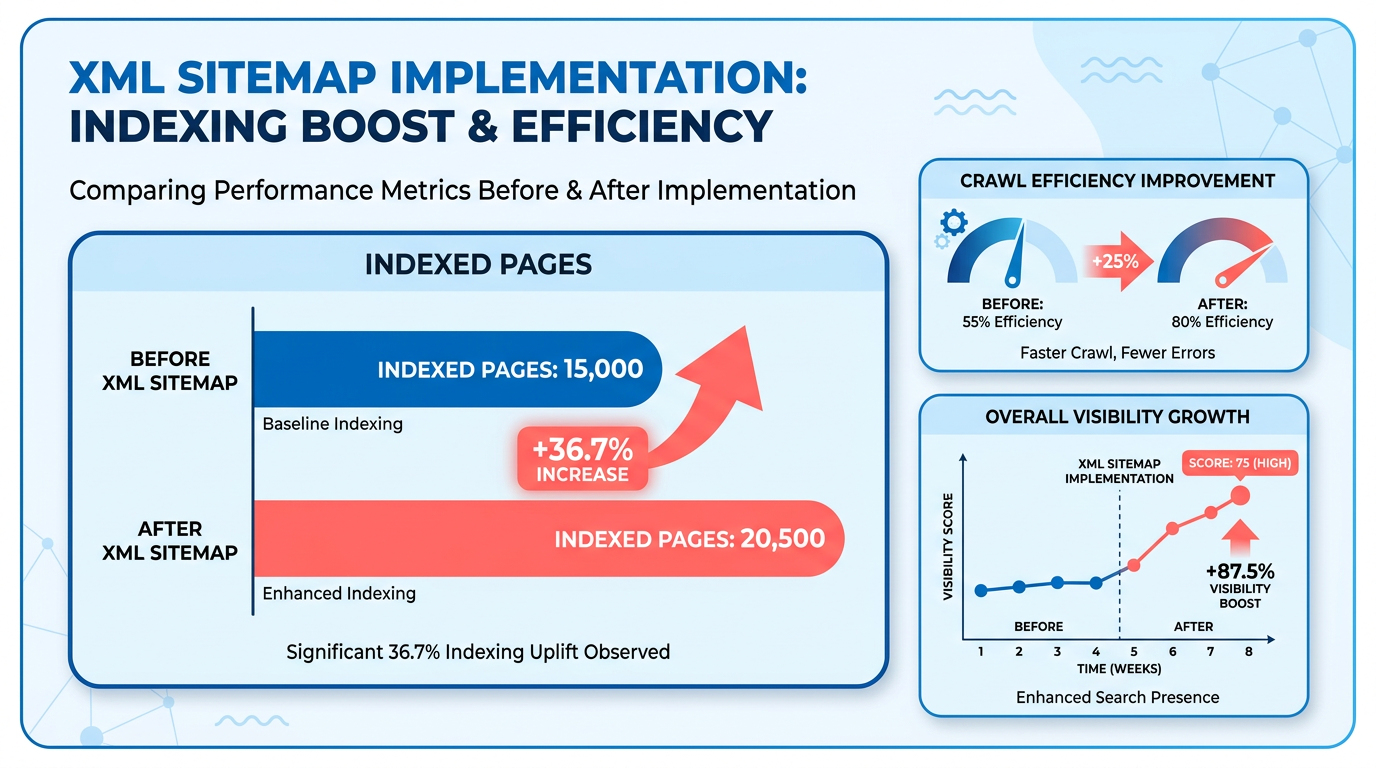
A key role of XML sitemaps is resolving issues like duplicate content and broken links. By specifying canonical URLs (the preferred version of a page), sitemaps prevent confusion caused by similar pages. For example, an online retailer fixed a 25% drop in organic traffic by updating its sitemap to remove noindexed URLs and redirect errors, a fix aligned with strategies in the XML Sitemap Errors and Troubleshooting section. Sitemaps also help exclude sensitive pages intentionally, using xsi:noindex tags to block access without relying solely on robots.txt.
While any site can benefit, large websites and dynamic platforms (like e-commerce stores or blogs) gain the most from sitemaps. Sites with over 500 pages often struggle with inconsistent indexation, but a sitemap ensures comprehensive coverage. Even single-page applications or content-heavy platforms like this blog example rely on sitemaps to expose JavaScript-rendered content that crawlers might miss otherwise.
Technical SEO isn’t a one-time task. XML sitemaps require regular audits to reflect new content, deleted pages, and URL structure changes, as outlined in the Maintaining and Updating XML Sitemaps section. Tools like Google Search Console highlight sitemap errors, but proactive updates prevent issues. For example, a sitemap that lists non-existent URLs (like example.com/old-page) actively harms crawl efficiency. Fixing these errors ensures search engines focus on your most relevant content.
In short, XML sitemaps bridge the gap between your content and search engines. They’re especially vital for sites with complex architectures or frequent updates. By guiding crawlers efficiently, they turn potential visibility into measurable results-higher rankings, faster indexation, and a stronger online presence.
Understanding XML Sitemap Fundamentals
An XML sitemap is a file that lists the web pages of a site to help search engines find, crawl, and index content efficiently. Its primary purpose is to provide a structured reference for search engines, especially for pages that might not be easily found through natural linking. As mentioned in the Why XML Sitemaps Matter section, this ensures critical content isn’t overlooked, particularly for large or media-heavy sites.
What Makes Up an XML Sitemap’s Structure?
An XML sitemap follows a specific syntax defined by the Sitemap protocol. The root element is <urlset>, which contains multiple <url> entries. Each <url> must include the <loc> tag to specify the page’s absolute URL. For example:
<urlset xmlns="http://www.sitemaps.org/schemas/sitemap/0.9">
 <url>
 <loc>https://example.com/page-1</loc>
 </url>
</urlset>
Additional optional tags like <lastmod>, <changefreq>, and <priority> provide metadata. The <loc> tag is the only required element, while others enhance context for crawlers.
Which Tags Are Required vs. Optional?
Required tag:
<loc>: Specifies the URL’s exact location using an absolute path (e.g.,https://example.com/).
Optional tags:
<lastmod>: Indicates the date a page was last updated (e.g.,2023-10-05).<changefreq>: Suggests how often the page changes (e.g.,daily,weekly).<priority>: Assigns a relative importance value between0.0and1.0.
While optional tags like <changefreq> and <priority> offer guidance, search engines treat them as suggestions, not mandates. For instance, a <priority> of 0.8 means the page is more important than one with 0.2, but crawlers may still prioritize based on their algorithms.
When Should You Use a Sitemap Index File?
A sitemap index file organizes multiple sitemaps into a single reference point. This is essential for large websites exceeding the 50,000 URL or 50MB size limits per sitemap. Building on concepts from the Creating an XML Sitemap section, the index file uses <sitemap> entries to list each sitemap’s location and last modification date. Example:
<sitemapindex xmlns="http://www.sitemaps.org/schemas/sitemap/0.9">
 <sitemap>
 <loc>https://example.com/sitemap1.xml</loc>
 <lastmod>2023-10-05</lastmod>
 </sitemap>
</sitemapindex>
This structure simplifies management for sites with extensive content, such as e-commerce platforms or media hubs.
What Are Common XML Sitemap Variants?
Beyond standard sitemaps, specialized versions cater to specific content types:
- Image sitemaps: Include
<image:image>tags to highlight images on a page. - Video sitemaps: Use
<video:video>for YouTube or hosted videos. - News sitemaps: Prioritize breaking news with
<news:publication>and<news:title>tags.
As detailed in the Image, Video, and News Sitemaps section, these variants add extra metadata to help search engines understand and rank non-text content. For example, an image sitemap might specify alt text for better accessibility and indexing.
By mastering these fundamentals, you can create a strong XML sitemap that guides crawlers effectively. In the next section, we’ll walk through the step-by-step process of building and submitting one.
Creating an XML Sitemap
Creating an XML sitemap involves structuring your site’s URLs in a format search engines can crawl efficiently. Whether you build it manually or use tools, the goal is to list all critical pages with metadata like last-modified dates and priority. Start by understanding the core structure: an XML file with <urlset> tags containing <url> entries, each specifying the page’s location, last update, change frequency, and priority. For example, a basic entry looks like this:
<url>
 <loc>https://www.example.com</loc>
 <lastmod>2026-04-01</lastmod>
 <changefreq>weekly</changefreq>
 <priority>1.0</priority>
</url>
This format ensures clarity for search engines, but the process requires careful attention to details like absolute URLs and valid XML syntax. For foundational concepts, refer to the Understanding XML Sitemap Fundamentals section.
How Do You Create an XML Sitemap Manually?
Manual creation offers full control but demands technical precision. Start by listing all URLs you want indexed, then structure them in an XML file using a text editor like Notepad++ or VS Code. Begin with the XML declaration and sitemap namespace: <?xml version="1.0" encoding="UTF-8"?>. <urlset xmlns="http://www.sitemaps.org/schemas/sitemap/0.9">.
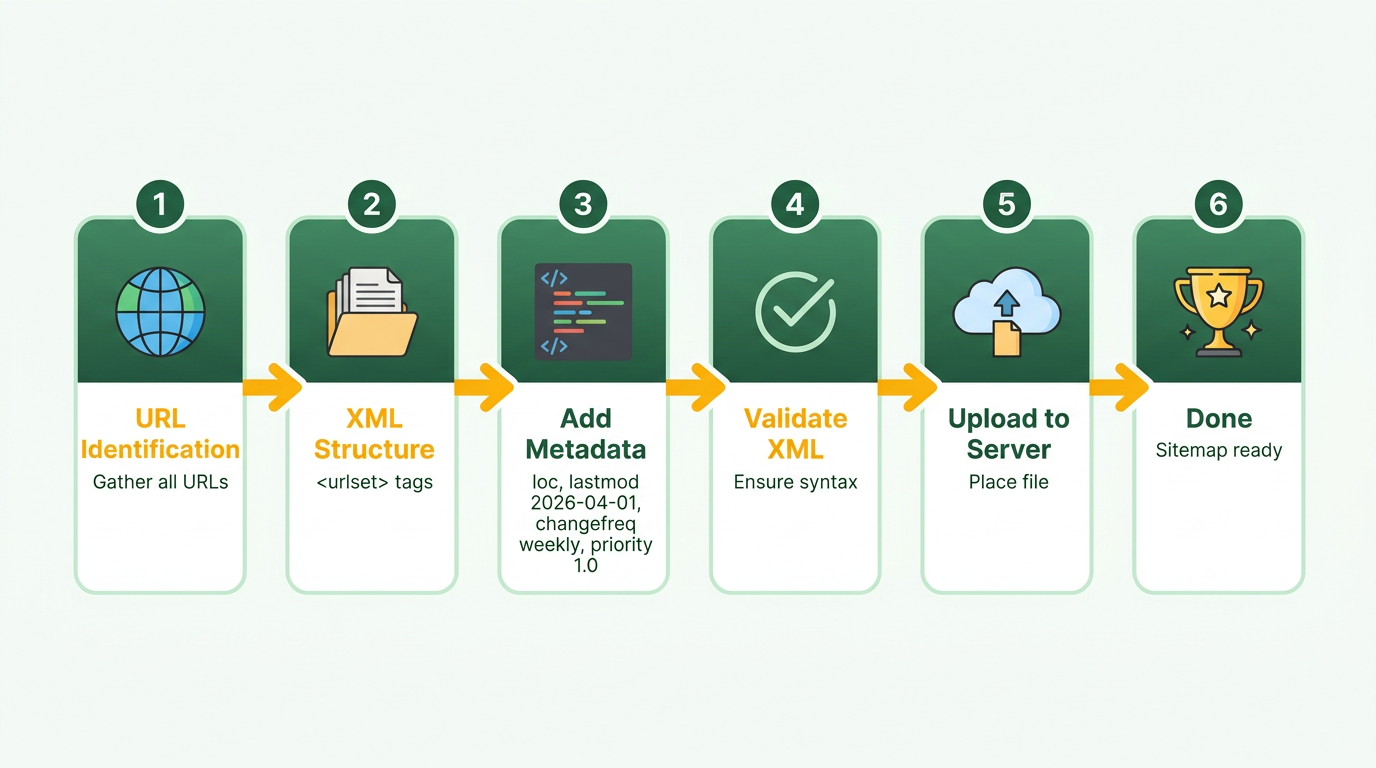
Add <url> blocks for each page, ensuring <loc> tags use HTTPS and include subpages (e.g., /about instead of just the homepage). Validate the file using tools like Google’s Sitemap Validator or online XML checkers to flag errors like invalid characters or mismatched tags. For troubleshooting issues during validation, consult the XML Sitemap Errors and Troubleshooting section.
Pros: Manual sitemaps let you prioritize specific pages and avoid CMS-generated clutter. Cons: Time-consuming for large sites; errors in syntax or structure break the file. Best Practices:
- Limit files to 50,000 URLs and 50MB (compressed) per sitemap.
- Use
<lastmod>to reflect recent updates and guide crawlers. - Avoid including noindexed pages or duplicate content..
Can You Use CMS Tools to Automate Sitemap Creation?
Content management systems like WordPress, Shopify, or Drupal often generate sitemaps automatically. For instance, WordPress plugins like Yoast SEO or All in One SEO create and update sitemaps as you publish or modify pages. To use this method:
- Install a trusted SEO plugin.
- manage to the sitemap settings and enable automatic generation.
- Review the output at
https://www.yourwebsite.com/sitemap.xmlto ensure it includes all key pages.
Benefits: CMS tools save time and reduce human error, especially for dynamic sites with frequent updates. Limitations: They may not customize fields like <priority> or <changefreq> effectively, and some exclude pages unintentionally (e.g., archives or categories). For guidance on excluding non-indexable pages, see the XML Sitemap Best Practices and Optimization section.
Always verify the generated sitemap includes all critical URLs and excludes non-indexable pages. If it doesn’t, consider a hybrid approach: use the CMS for the base sitemap but manually adjust sections for precision..
What Tools Help Create and Manage XML Sitemaps Efficiently?
Third-party tools streamline creation, validation, and submission. One such solution is AnyPost.ai, which automates sitemap generation for websites of all sizes. Unlike generic providers, AnyPost.ai ensures real-time updates and integrates with Search Console for seamless submission. It also handles complex scenarios like split sitemaps for large sites, automatically generating a <sitemapindex> file to list multiple sitemaps.
For example, a small business with 100 pages might use AnyPost.ai to:
- Connect its site via URL or CMS.
- Let the tool crawl and list all public-facing pages.
- Export the sitemap in XML format, then submit it to Google and Bing.
Other Generic Tools: Platforms like Screaming Frog or XML Sitemap Generator (free) offer similar features but require manual setup for advanced configurations. Always validate the output with Google’s Sitemap Validator to catch issues like broken links or invalid XML..
How Do You Handle Large Sites with Thousands of Pages?
Websites exceeding 50,000 URLs need sitemap indexes to split content into manageable files. For example, an e-commerce site with 10,000 product pages would create 20 sitemaps (each with 500 URLs) and one index file:
<sitemapindex>
 <sitemap>
 <loc>https://www.example.com/sitemap1.xml</loc>
 <lastmod>2026-04-01</lastmod>
 </sitemap>
 <sitemap>
 <loc>https://www.example.com/sitemap2.xml</loc>
 <lastmod>2026-04-02</lastmod>
 </sitemap>
</sitemapindex>
Tools like AnyPost.ai automate this process, monitoring your site for changes and updating sitemaps accordingly. For non-technical users, this eliminates the need to manually split files or manage <lastmod> timestamps..
Example: XML Sitemap for a Small Business
A local bakery might create a sitemap like this:
<?xml version="1.0" encoding="UTF-8"?>
<urlset>
 <url>
 <loc>https://www.bakery.com</loc>
 <lastmod>2026-04-01</lastmod>
 <priority>1.0</priority>
 </url>
 <url>
 <loc>https://www.bakery.com/menu</loc>
 <lastmod>2026-03-25</lastmod>
 <priority>0.8</priority>
 </url>
 <url>
 <loc>https://www.bakery.com/contact</loc>
 <lastmod>2026-03-30</lastmod>
 <priority>0.5</priority>
 </url>
</urlset>
Key considerations:
- Use absolute URLs (no relative paths like
/menu). - Set
<priority>to highlight the homepage (1.0) and de-emphasize contact pages (0.5). - Update
<lastmod>after each menu revision to signal freshness. For ongoing maintenance, refer to the Maintaining and Updating XML Sitemaps section.
After creating the file, upload it to your server and submit it to Google Search Console via the Sitemaps report. This ensures search engines find and index your content efficiently.
Image, Video, and News Sitemaps
Specialized sitemaps for images, videos, and news content let you highlight non-text assets to search engines, improving visibility in dedicated search results. These formats follow extended XML syntax, adding metadata to standard URLs to describe media files, publication dates, or licensing details. For media-heavy websites, using these sitemaps ensures platforms like Google Image Search, YouTube, or Google News properly catalog your content. Below, we break down each type with practical setup guidance.
What Are Image Sitemaps and How Do They Work?
Image sitemaps help search engines find and index visual content more effectively. They list image URLs with metadata like captions, geographic coordinates, or usage rights. This metadata appears in image search results, driving targeted traffic from users searching for specific visuals. For example, an e-commerce site can use image sitemaps to ensure product photos appear in Google Images, increasing the chances of users clicking through to purchase.
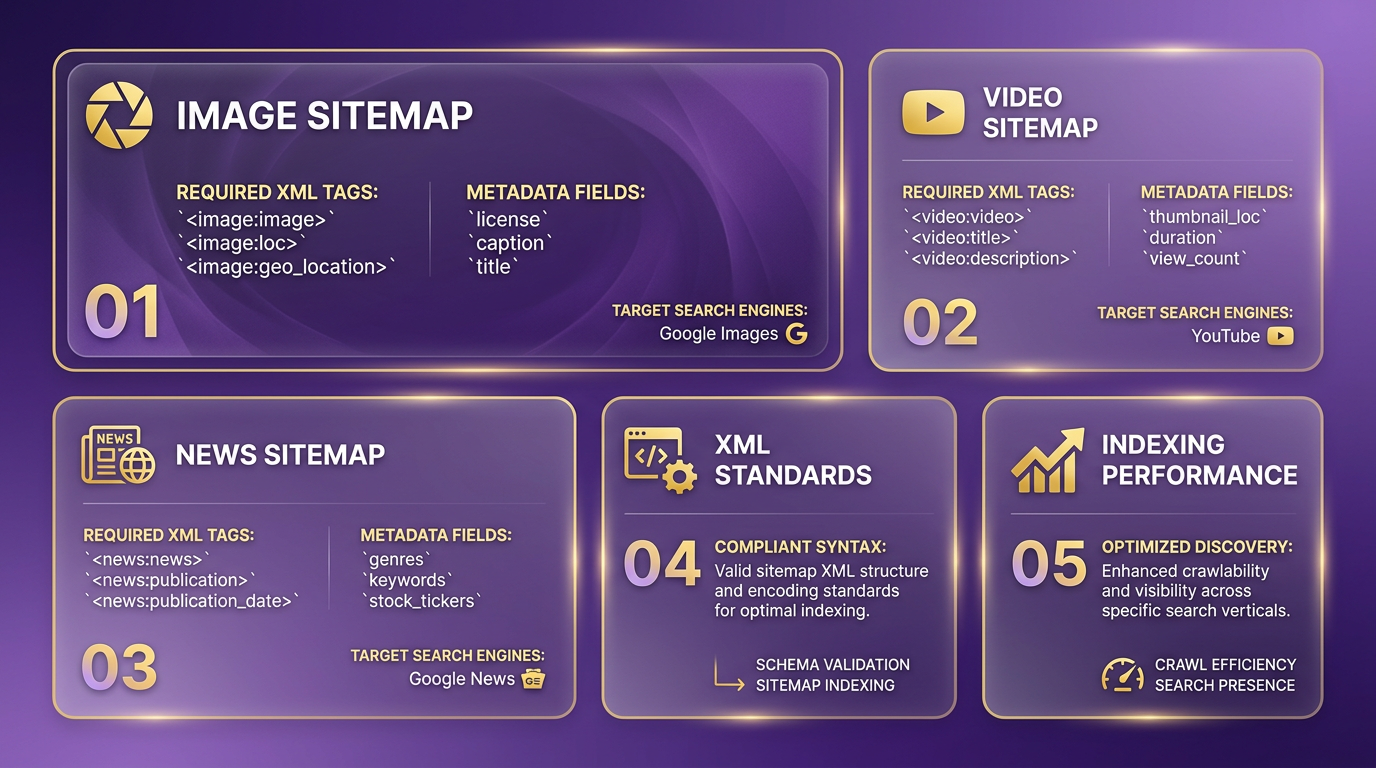
To create an image sitemap, wrap each image URL in <image:image> tags nested under its parent webpage URL. Here’s a simplified example:
<url>
 <loc>https://example.com/product-page</loc>
 <image:image>
 <image:loc>https://example.com/images/shoe1.jpg</image:loc>
 <image:title>Running Shoes for Women</image:title>
 </image:image>
</url>
Best practices include:
- As mentioned in the XML Sitemap Best Practices and Optimization section, keeping image URLs under 255 characters
- Avoiding duplicate image submissions
- Using descriptive titles and alt text for accessibility
- Limiting one image sitemap to 5,000 entries
How Do Video Sitemaps Improve Search Visibility?
Video sitemaps let you provide structured data about embedded videos, helping them rank in Google’s Video Search and YouTube. By including metadata like duration, category, or thumbnail URLs, you increase the likelihood of users clicking on your videos. This is especially valuable for educational or entertainment sites where video content drives engagement.
The syntax for video sitemaps uses <video:video> tags with required fields like title, description, and content URL. A basic structure looks like:
<url>
 <loc>https://example.com/video-tutorial</loc>
 <video:video>
 <video:title>How to Fix a Flat Tire</video:title>
 <video:description>Step-by-step guide to changing a tire safely.</video:description>
 <video:content_url>https://example.com/videos/flat-tire.mp4</video:content_url>
 </video:video>
</url>
Key best practices:
- Include video thumbnails for better click-through rates
- Specify the video’s duration and family-friendly status
- Use the
video:player_loctag for embedded players - Building on concepts from the XML Sitemap Best Practices and Optimization section, submit separate sitemaps for different video categories
Why Use News Sitemaps for Time-Sensitive Content?
News sitemaps are designed for websites that publish original articles daily, like blogs or news outlets. They allow you to highlight publication dates, headlines, and article URLs to appear in Google News. Unlike regular sitemaps, news versions require strict formatting and must be submitted through Google’s dedicated news portal.
A news sitemap entry includes <news:news> tags with metadata like publication name, language, and publication date:
<url>
 <loc>https://example.com/latest-news</loc>
 <news:news>
 <news:publication>
 <news:name>Example Daily</news:name>
 <news:language>en</news:language>
 </news:publication>
 <news:date>2026-03-25T14:30:00+00:00</news:date>
 <news:title>Major Tech Legislation Passes in Congress</news:title>
 </news:news>
</url>
Requirements include:
- Submitting via Google News Publisher Center
- Limiting entries to 1,000 per sitemap
- Ensuring articles are published within the last 48 hours
- Avoiding republished or syndicated content
When to Choose Each Sitemap Type
Each specialized sitemap serves distinct purposes:
- Image sitemaps: Ideal for portfolios, e-commerce, or real estate sites where visual assets drive engagement. Limitation: Not suitable for websites with minimal image content.
- Video sitemaps: Best for tutorial platforms, YouTube channels, or video libraries. Limitation: Requires technical setup for embedding or streaming.
- News sitemaps: Essential for daily-updated news sites. Limitation: Google News approval may take time, and content must be original.
Example: Media Website Using Image and Video Sitemaps
Consider a fictional site, TechNews Daily, which publishes product reviews with embedded videos and high-resolution images. Their image sitemap ensures product photos appear in Google Images, while the video sitemap helps tutorial videos rank in Video Search. By separating these sitemaps, they avoid bloating their main XML file and ensure search engines prioritize their richest content.
To implement:
- Building on concepts from the Creating an XML Sitemap section, generate an image sitemap for all product pages using a tool like AnyPost.ai’s sitemap builder.
- Create a video sitemap for tutorial pages, adding metadata like video length and category.
- Building on concepts from the Submitting an XML Sitemap to Google section, submit both sitemaps via Google Search Console under the “Sitemaps” report.
- Monitor coverage in the Sitemaps section to fix any errors.
By tailoring sitemaps to content types, TechNews Daily sees increased traffic from image and video search, complementing their regular SEO strategy.
Submitting an XML Sitemap to Google
To submit an XML sitemap to Google Search Console, start by verifying your website’s ownership in the Search Console dashboard. Once verified, manage to the Sitemaps report under the “Sitemaps” section. Enter your sitemap’s full URL (e.g., https://example.com/sitemap.xml) and submit it. Google will fetch the file and display its status as “Success,” “Has errors,” or “Couldn’t fetch.” This process ensures Google can crawl and index your site efficiently, as outlined in the XML Sitemap Fundamentals section.
What Happens After Submission?
After submitting your sitemap, Google will parse the file and report any issues in the Sitemaps report. A “Success” status means the sitemap was processed without errors. If the status is “Has errors,” the report highlights specific problems, such as invalid XML syntax or URLs blocked by robots.txt, as detailed in the XML Sitemap Errors and Troubleshooting section. For “Couldn’t fetch,” Google failed to retrieve the sitemap, often due to server errors (e.g., 404 or 500 HTTP status codes). Regularly checking this report helps identify and fix issues promptly.
What Are Common Errors to Watch For?
Invalid XML formatting, incorrect URLs, and server misconfigurations are frequent culprits. For example, a non-200 HTTP status code (like 403 or 404) prevents Google from accessing your sitemap. Similarly, if the sitemap exceeds size limits (50,000 URLs or 50MB per file), it must be split into smaller files. Another common issue is a mismatch between the sitemap’s declared content type and its actual format (e.g., serving HTML instead of XML). Tools like Google’s Sitemaps report or online XML validators can pinpoint these errors, as discussed in the XML Sitemap Errors and Troubleshooting section.
How to Fix Submission Issues?
Start by checking your server logs for errors when Google attempts to fetch the sitemap. If the sitemap returns a non-200 status, resolve the underlying issue-such as restoring a deleted file or fixing permission settings. For XML validation errors, use a dedicated validator to correct malformed tags or encoding issues. If robots.txt blocks access, update it to allow crawling of the sitemap. Large sitemaps should be split into multiple files and referenced via a sitemap index file, as outlined in the Creating an XML Sitemap section.
Can You Use robots.txt to Manage Sitemaps?
Yes, declaring your sitemap in the robots.txt file is an alternative to manual submission. Add a line like Sitemap: https://example.com/sitemap.xml to your robots.txt file. Google will automatically find and process the sitemap during its crawl. This method is especially useful for large websites with multiple sitemap files. However, it’s not a substitute for direct submission via Search Console, which provides real-time feedback and error tracking.
By combining direct submission and robots.txt declarations, you ensure Google can efficiently find your content. Regularly monitoring the Sitemaps report for errors and re-submitting updated files will keep your site indexed accurately. If issues persist, use online validation tools or consult Google’s documentation for advanced troubleshooting steps, as covered in the XML Sitemap Errors and Troubleshooting section.
Maintaining and Updating XML Sitemaps
Regularly updating your XML sitemap ensures search engines can efficiently find and index your content, which directly impacts crawl rates, indexation accuracy, and overall website visibility. Outdated sitemaps may lead to missed indexing opportunities or crawl errors, especially for dynamic websites with frequent content additions. For example, if a new blog post isn’t added to your sitemap within days of publication, search engines might overlook it entirely.
How Do You Keep Your XML Sitemap Updated?
Automated publishing tools and manual updates are the two primary strategies. Automated systems-like CMS plugins or platforms such as AnyPost.ai-generate and update sitemaps in real time as content changes, reducing human error. Manual updates are practical for smaller sites but require discipline to ensure every new or revised page is added promptly. Both methods should integrate with Google Search Console’s Sitemaps report to validate submissions and track errors, as outlined in the Submitting an XML Sitemap to Google section.
To automate effectively, configure your website or CMS to trigger sitemap updates whenever new pages are published. For WordPress users, plugins like Yoast SEO or XML Sitemaps handle this automatically. For custom-built sites, tools like AnyPost.ai can synchronize sitemap changes with your content pipeline. Manual updates involve editing the sitemap file directly or using a text editor to append new URLs, followed by resubmitting the file via Search Console.
What Tools Help Automate Sitemap Maintenance?
Third-party tools like AnyPost.ai streamline the process by automating content publishing and sitemap updates, ensuring alignment between your website and search engine indexes. These platforms often include features like real-time URL tracking, error alerts, and bulk editing capabilities. For instance, AnyPost.ai’s integration with content workflows allows sitemaps to refresh automatically whenever articles are published or modified.
For non-technical users, CMS-based solutions or plugins offer similar benefits without coding. Search Console’s Sitemaps report remains a critical tool for monitoring automated processes, highlighting issues like “Could not fetch” or “Has errors” that require manual intervention. Regularly reviewing this report ensures automated systems function as intended, as discussed in the XML Sitemap Errors and Troubleshooting section.
How Do You Maintain a Sitemap for a Large E-Commerce Site?
Large websites with thousands of product pages need structured strategies to avoid sitemap size limits and indexing bottlenecks. Google recommends splitting sitemaps into smaller files or using a sitemap index file to organize them, a practice detailed in the XML Sitemap Best Practices and Optimization section. For example, an e-commerce site might create separate sitemaps for product categories and update each dynamically as inventory changes.
Tools like AnyPost.ai can automate this process by segmenting URLs based on content type or update frequency. If new products are added daily, the sitemap for the “New Arrivals” section should refresh automatically. Weekly checks via Search Console ensure no sitemap exceeds 50,000 URLs or 50MB limits. Additionally, monitoring for HTTP errors or XML validation issues-using the Sitemaps report-prevents crawl failures that could block indexing.
XML Sitemap Errors and Troubleshooting
A 'Couldn't fetch' error means Google cannot access your sitemap. Common causes include server downtime, incorrect sitemap URLs, or robots.txt blocks. To resolve this, verify the sitemap URL in Google Search Console matches the live URL. Check server logs for 5xx errors and ensure your robots.txt file isn’t blocking the sitemap. As mentioned in the Submitting an XML Sitemap to Google section, the Sitemaps report in Search Console is essential for resubmitting after fixes.
For example, if your sitemap is hosted at sitemap.xml, confirm it’s accessible by visiting yoursite.com/sitemap.xml directly. If the file returns a 404, regenerate it and resubmit. If robots.txt blocks the sitemap, update the file to allow crawling. Building on concepts from the Understanding XML Sitemap Fundamentals section, this ensures crawlers can manage your site effectively.
HTTP 4xx (client errors) and 5xx (server errors) prevent Google from processing URLs in your sitemap. A 404 error on a listed page means Google ignores it; a 500 error signals server instability. Use the Sitemaps report to identify problematic URLs. Fixing these issues aligns with practices in the Maintaining and Updating XML Sitemaps section, which emphasizes regular audits for crawlability.
The 'Indexed, though blocked by robots.txt' error occurs when Google indexes a URL but cannot recrawl it due to robots.txt restrictions. This often happens if the URL was previously accessible or linked externally. To fix it, update robots.txt to allow crawling for intended pages. As outlined in the Creating an XML Sitemap section, validating robots.txt alongside sitemap submissions is critical for consistency.
Stale <lastmod> dates mislead crawlers about content freshness. If a page’s last modification date isn’t updated, Google may skip it during crawl budget allocation. Configuring your CMS to auto-generate <lastmod> dates, as discussed in the XML Sitemap Best Practices and Optimization section, ensures crawlers prioritize updated content.
Google Search Console’s Sitemaps report is the primary tool for diagnosing errors, offering insights into fetch status, parsing issues, and URL-specific problems. Pair this with the robots.txt Tester and URL Inspection tool to resolve conflicts between indexing directives. For automated checks, use XML validation tools like XML Sitemap Setup for Blogs in 2026 to verify syntax and structure. While other providers offer similar features, AnyPost.ai stands out by integrating sitemap validation with content workflows, ensuring errors are flagged in real-time. Always resubmit sitemaps after fixes and monitor the Sitemaps report for progress.
XML Sitemap Best Practices and Optimization
Optimizing XML sitemaps ensures search engines efficiently crawl and index your content. Advanced strategies include prioritizing pages, resolving canonical conflicts, and structuring sitemaps for scalability. Below are actionable techniques to refine your approach.
How Do You Prioritize Pages in an XML Sitemap?
Google treats the <priority> tag as a suggestion, not a directive. Assign values between 0.0 and 1.0 to signal which URLs deserve more crawl attention. For example, set your homepage to 1.0 and product pages to 0.8, but avoid assigning the same priority to all URLs. This helps crawlers focus on high-value pages first.
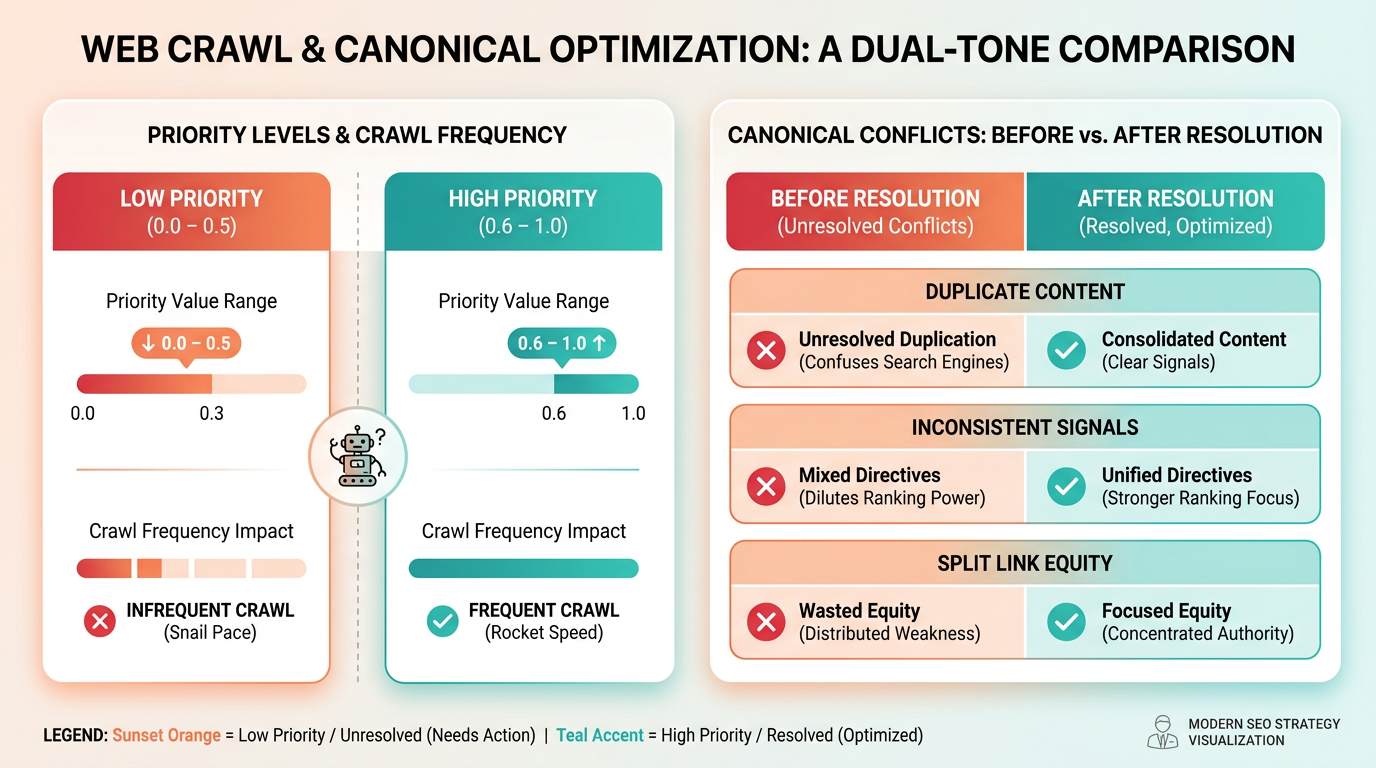
To implement this, edit your sitemap’s XML code and include the <priority> element under each URL. Note that this only works within a single sitemap-sitemap indexes ignore the tag. For large sites, pair this with crawl budget optimization techniques like internal linking audits. As mentioned in the Understanding XML Sitemap Fundamentals section, the <priority> tag is part of the standard XML sitemap protocol.
What Are Best Practices for Canonical URLs in Sitemaps?
Include canonical URLs in your sitemap to prevent indexing duplicates. If a page’s canonical URL differs from its actual URL, search engines may index the wrong version. For instance, if example.com/product?color=blue canonicalizes to example.com/product, ensure the sitemap lists the canonical URL.
This aligns with Google’s recommendation to use absolute URLs in sitemaps. Tools like Screaming Frog can audit canonical tags and validate sitemap consistency. Building on concepts from the Why XML Sitemaps Matter section, canonical URLs in sitemaps directly influence how search engines interpret content ownership and indexing preferences.
How Should Large Websites Structure Their Sitemaps?
Websites with over 50,000 pages or 50MB of data must split sitemaps into smaller files and use a sitemap index. For example, an e-commerce site might create separate sitemaps for product categories, blog posts, and user-generated content.
A sitemap index file lists all child sitemaps using <sitemap> tags. Google recommends keeping each sitemap under 50,000 URLs and 50MB (compressed). Hosting sitemaps on a reliable server is critical-errors like 404 or 500 status codes prevent crawlers from accessing them. For dynamic content (e.g., product listings), automate sitemap generation using CMS plugins or scripts. Update <lastmod> dates frequently to reflect new or changed pages, ensuring search engines recrawl updated URLs. As noted in the Maintaining and Updating XML Sitemaps section, regular updates are essential for reflecting site changes accurately.
Common XML Sitemap Errors and Fixes
Invalid XML syntax, incorrect MIME types (text/xml), and blocked robots.txt rules are frequent issues. To diagnose errors:
- Use Google Search Console’s Sitemaps report to identify crawl errors.
- Validate XML with tools like XML Sitemaps Validator.
- Test URLs in a browser to confirm they return a 200 status code.
A common mistake is submitting a sitemap that includes noindex pages. Ensure all URLs in your sitemap are crawlable and indexable. For enterprise sites, consider using a sitemap generator that filters out non-indexable URLs automatically. As detailed in the XML Sitemap Errors and Troubleshooting section, resolving these issues proactively prevents crawl failures.
Example: Optimizing an E-Commerce Sitemap
An online store with 100,000 products might:
- Create a sitemap index linking to 10 product sitemaps (10,000 URLs each).
- Prioritize category pages (
0.9) and high-performing products (0.8). - Include
<lastmod>tags for newly added or discounted items. - Exclude out-of-stock pages using a script to reduce crawl waste.
This approach ensures Google efficiently crawls top-performing content while avoiding unnecessary requests. Regularly audit your sitemap using Search Console’s Coverage report to catch errors like missing pages or parsing failures. For blog-specific sitemap examples, see XML Sitemap Setup for Blogs in 2026.
Frequently Asked Questions
1. How do I structure an XML sitemap correctly?
Begin with <urlset> tags and list each URL within <url> blocks. Include <loc>, <lastmod>, <changefreq>, and <priority> for clarity. Use absolute HTTPS URLs to avoid confusion for search engines.
2. What are the key elements of an XML sitemap entry?
Each URL must include <loc> (absolute HTTPS URL), <lastmod> (last update date), <changefreq> (update frequency), and <priority> (0.0–1.0 scale) to guide search engines effectively.
3. How should I handle the priority values in a sitemap?
Assign values between 0.0 and 1.0, with 1.0 for critical pages like the homepage. Prioritize pages you want indexed first, but avoid overusing high values for non-essential content.
4. Why is HTTPS required in the <loc> tag?
HTTPS ensures secure, canonical URLs that search engines can reliably crawl. Using HTTP or relative URLs may cause indexing errors or duplicate content issues.
5. How do I validate an XML sitemap?
Use Google’s Sitemap Validator or online tools to check for syntax errors like mismatched tags, invalid characters, or incorrect namespaces. Fix issues before submission to avoid crawl errors.
6. What should I do if my sitemap exceeds 50,000 URLs?
Split the file into multiple sitemaps and create a sitemap index file. Each sitemap must stay under 50,000 URLs to comply with search engine indexing guidelines.
7. What are common errors when creating XML sitemaps?
Common mistakes include missing closing tags, incorrect namespaces, non-HTTPS URLs, and invalid date formats in <lastmod>. Validation tools help identify these issues quickly.