Reduce Bounce Rate With GA4: A 9-Fix Web Page SEO Audit

Key Takeaways
- GA4 marks a session as engaged only when it clears 10 seconds, fires a key event, or records two or more pageviews.
- Bounce rate is the exact inverse of engagement rate, and neither metric appears in GA4 reports until you customize a detail report to include them.
session_startstays excluded from engaged-session credit even when flagged as a key event, so fast single-page visits will score as bounces regardless.- A session-volume filter keeps low-traffic noise from warping bounce comparisons across templates; treat any floor as a starting point, not a rule.
- Two of the nine fixes, Core Web Vitals and key-event tagging, require developer or tag-management work. The other seven don't.
- A glossary entry closed in twelve seconds satisfied its query. Forcing a second click just flatters the number and frustrates the reader.
Quick Summary
Most teams read a high bounce rate as a verdict on their content. In GA4 it behaves more like a stopwatch with a moving start line. We use it as a prioritization signal: which pages deserve a refresh this sprint, and which should be left alone.
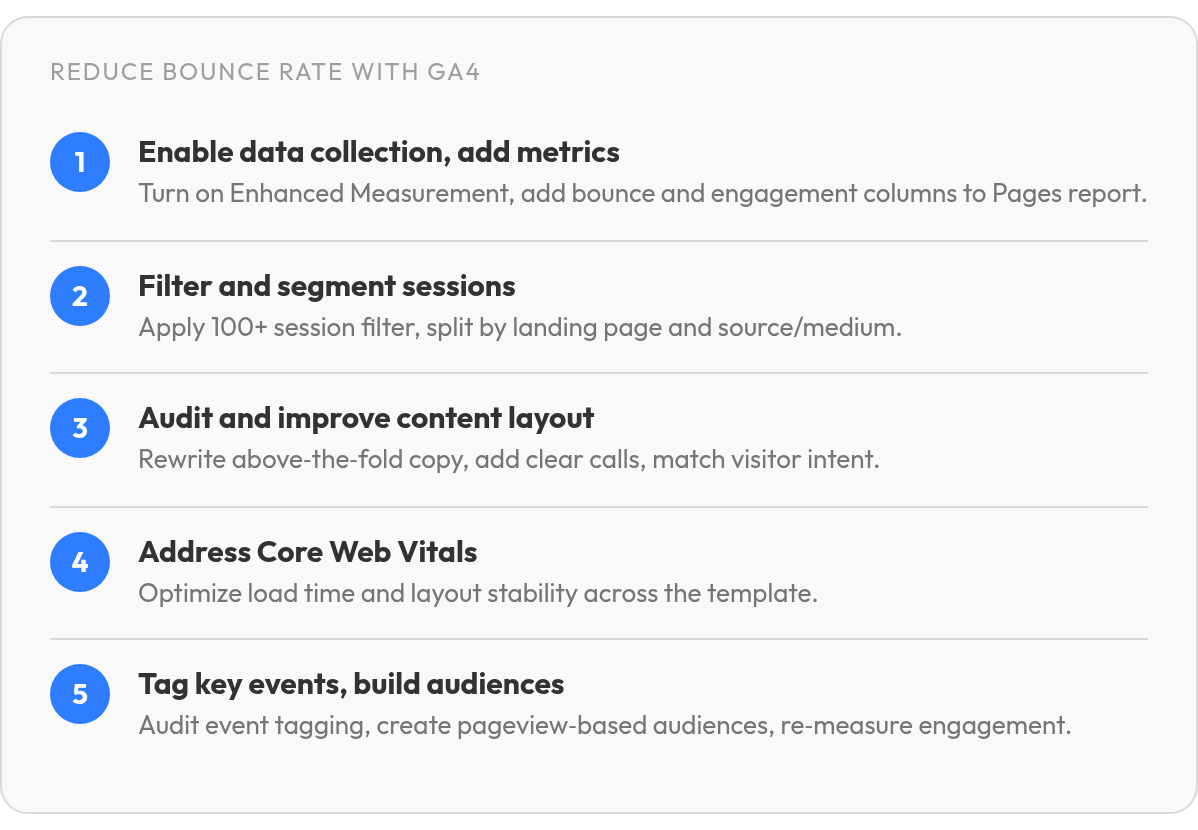
The nine-fix audit below is the order our team runs when the goal is to move bounce rate without rebuilding every template at once. Difficulty reflects the technical lift required, not the payoff. Low means an afternoon inside GA4. High means a developer or a tag-management change.
| # | Fix | GA4 signal it targets | Difficulty |
|---|---|---|---|
| 1 | Read the fixed 10-second threshold by template | Engaged sessions | Low |
| 2 | Add bounce rate and engagement rate to Pages and screens | Bounce rate | Low |
| 3 | Filter the page table by session volume | Data significance | Low |
| 4 | Split by landing page plus query string | Bounce rate by entry point | Medium |
| 5 | Segment by session source/medium | Channel-level bounce | Medium |
| 6 | Rewrite above the fold: confirmation, credibility, clear instructions | Engagement rate | Medium |
| 7 | Fix Core Web Vitals | Load and layout stability | High |
| 8 | Audit key events and tagging | Key events counted as engaged | High |
| 9 | Build pageview-based audiences, then re-measure | Engagement rate over time | Medium |
Two Definitions Decide Whether the Sprint Is Worth Running
Engaged session: a session lasting longer than 10 seconds, firing a key event, or containing two or more page or screen views. Bounce rate is the share of sessions that cleared none of those, which makes it the exact inverse of engagement rate. Most GA4 reports hide both until you customize a detail report and add them manually.
Bounce rates drift with traffic mix and page type. Treat any published median as a rough sanity check on your sitewide number, not a pass mark: a pricing page and a glossary entry shouldn't be measured against the same line.
- Confirm both definitions before you touch a template. A session that logs a pageview but ends inside 10 seconds with no key event still counts as a bounce, and
session_startstays excluded even when flagged as a key event. - Set your benchmark and re-measurement window together. The audit only pays off if you re-run the same filtered view after the fixes land, rather than declaring victory on a single snapshot.
Skip this sprint for pages built to answer one question fast. A glossary entry that satisfies the query and closes in twelve seconds is doing exactly what it should. Forcing a second click to lower a percentage makes the page worse.
What GA4's Bounce Rate Is Actually Counting
The part most teams misread isn't the number itself. It's what the number is measuring.
That inverse gives us the clearest reason to work on bounce rate: it marks the slice of traffic where nothing registered.
What we see repeatedly is teams treating that number as a content verdict when it's often a timer problem. The engaged-session threshold doesn't flex per page type. A product page built for 90-second reads and a glossary entry built for 8-second answers are scored against the same 10-second floor.
Work It Template by Template, Not Across the Site
Sitewide averages bury the pages that actually need attention. Work the metric template by template and you stop rewriting copy that was never the problem.
- Benchmark against the page's category, not the domain. What looks alarming against a sitewide average can be perfectly ordinary for that page type.
The trend line matters more than a snapshot. A slow upward drift across one template over several months is worth chasing; a single rough week usually isn't.
Want the deeper scoring side? Our guide to what counts as a good bounce rate pairs with this audit.
Fix #1–3: Get the Data Right Before You Touch Anything
Three checks decide whether your page table is worth reading. Skip them and the sprint can burn weeks on pages that were never the problem.
Start with Enhanced Measurement: open the web data stream and confirm it's on before you trust a single number. Otherwise scroll, outbound click, and site search activity can go missing, and a coverage gap reads like a content verdict.
Make Bounce Rate Visible Before You Try to Move It
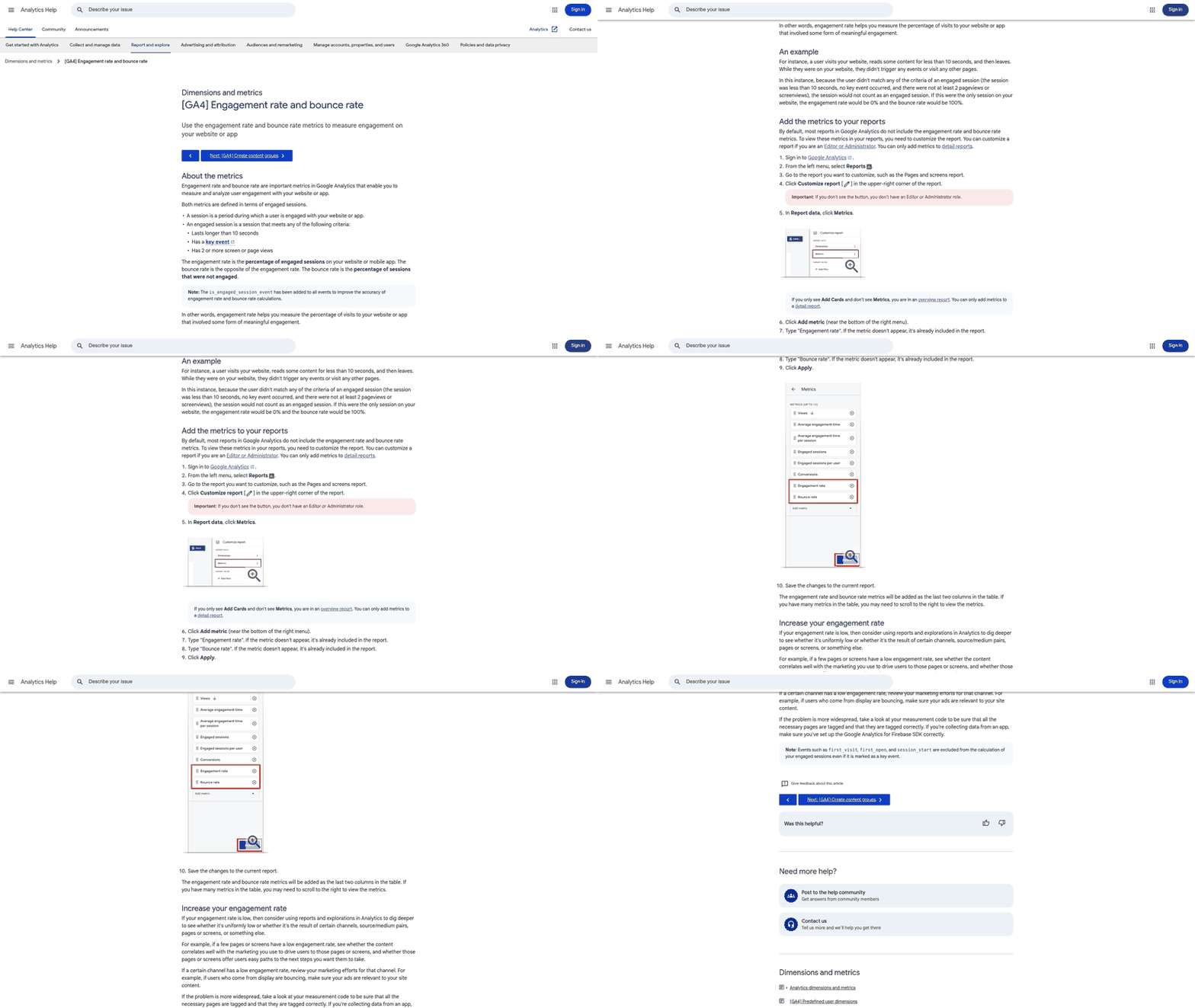
Most GA4 reports ship without engagement rate and bounce rate. Google's Analytics Help is direct: with Editor or Administrator access, customize a detail report and the metrics land as the last two columns. Only seeing Add Cards? That's an overview report, and metrics never appear there.
-
Enable Enhanced Measurement in the web data stream so real interactions register as events rather than silence.
-
Add bounce rate and engagement rate to the Pages and screens detail report, then save the change so the next person inherits it.
-
Filter page audits to a volume of sessions that stabilizes the percentage. Below that floor, a handful of visitors swings the number by whole points and you end up rewriting a page over noise.
-
Read the engaged-session threshold against what the template is actually built to do. Ten seconds is fixed in the metric's definition, not something you can tune per page type. A page designed to answer in one glance will look weak next to long-form content that was never meant to be skimmed.
Pageview Audiences Turn the Definition Into a Filter
- Build custom audiences for sessions with exactly two or three pageviews, and a second for more than three. Apply them in standard reports.
That creates a re-measurement loop you can actually run. You're not guessing at intent. You're counting a behavior GA4 already uses in its own definition.
Segment the same filtered view by session source/medium before comparing pages. Bounce rates drift with traffic mix, so compare channels before blaming the copy, then carry that segment into re-measurement.
Fix #4–6: Match What the Page Promises to What Visitors Expected
You can't reduce bounce rate by rewriting a headline that takes four seconds to appear. Speed decides whether a visitor stays long enough to read anything. Past a certain point, people leave before the page finishes rendering.
Teams still spend sprints on new copy while the template shifts layout under the reader as it loads. That ordering is backwards.
What a Speed Fix Actually Requires
- Pull load and layout-stability numbers into a crawl report you can rerun on demand. Most crawlers report both directly and substitute total blocking time for responsiveness, giving you a read without guessing page by page.
- Fix the component, not the URL. A slow hero image or an unstable layout element tends to repeat across every page built from that template, so one deploy can move a whole cluster.
- Re-crawl after release and compare numbers. An unverified speed fix is a guess you've already paid for.
Use these crawl metrics to locate and verify component fixes, not as universal pass marks or bounce-rate benchmarks.
Where Links, Queries, and Audiences Fit
Internal linking is the only content change that satisfies an engagement rule directly. A session turns engaged at two or more pageviews, and Google's own guidance on lifting engagement asks whether the page offers an easy path to the next step. One or two contextual links to a genuinely relevant next page do that. A footer wall of "related posts" isn't a path, and readers treat it as noise. Our breakdown of bounce benchmarks shows where most page types actually land.
- Split the page table by landing page plus query string. Compare CTR against average position so each entry page is read against the query that brought the visit.
- Target queries sitting a position or two outside a better slot. Those are cheapest to move, and a matched landing page keeps arrivals from bouncing on a promise the original page didn't keep.
- Audit key events and tagging before rewriting copy. Confirm Enhanced Measurement is on, check that scroll, outbound click, and site search activity register, and review which real interactions are key events.
session_startearns no engaged-session credit even when flagged.
Skip scroll-depth and under-10-second audience segments. Nothing in the metric's definition maps to them, while pageview counts sit directly on the criterion GA4 counts.
For re-measurement, keep the same session floor, landing-page/query-string split, source/medium segment, and pageview audiences. Re-crawl released speed fixes, then re-run that filtered view after the copy and tagging changes land. Compare the trend over the window you set at the start, not a single snapshot.
Questions People Ask
Why does a fast visit still count as a bounce after I flag session_start as a key event?
GA4 keeps session_start out of engaged-session credit even when you tag it as a key event. A session qualifies only by running past 10 seconds, firing a real key event, or logging two or more pageviews, so fast single-page visits with the flag still score as bounces. Our benchmark guide covers what's normal per page type.
Which of the nine fixes actually need a developer?
Two of the nine: Core Web Vitals and key-event tagging. Both sit outside GA4, so plan them as a tag-management or engineering ticket rather than an afternoon of configuration. The other seven are report settings, segmentation and copy edits you can run without a release.
What should you do when the 100-plus session filter leaves almost no rows?
Treat any session floor as a starting filter, not a validated rule. If it leaves only two or three pages, wait for volume or read those pages by hand; below a stable floor, a handful of visitors moves the percentage by whole points. Hold off on template rewrites until the numbers can carry a comparison.